Quick Answer: How Do You Get Catch Up TV on an LG Smart TV?
You get catch up TV on an LG smart TV by connecting the television to the internet and downloading official broadcaster applications directly from the LG Content Store. Most modern webOS versions also integrate these services directly into the main electronic program guide.
Table of Contents
Prerequisites for Catch Up TV on LG webOS
Setting up catch up television requires an active broadband connection delivering at least five megabits per second. Live broadcast integrations on webOS also require a physical terrestrial aerial plugged into the television to authenticate the regional programming guide. Hardware requirements vary depending on how you plan to watch.
Most modern televisions process standard video streams easily, but older models may struggle with bandwidth. Using an ethernet cable instead of Wi-Fi guarantees the stability required to prevent buffering during high-definition playback.
Viewers exclusively using internet streaming without a physical aerial will be restricted to standalone app playback. They cannot use the backward-scrolling electronic program guide feature available on terrestrial-connected sets.
Key Takeaway: You need a solid internet connection and a physical aerial connection to unlock the full backwards-scrolling TV guide feature on webOS.
How Do You Install Catch Up TV Apps on LG Smart TV?
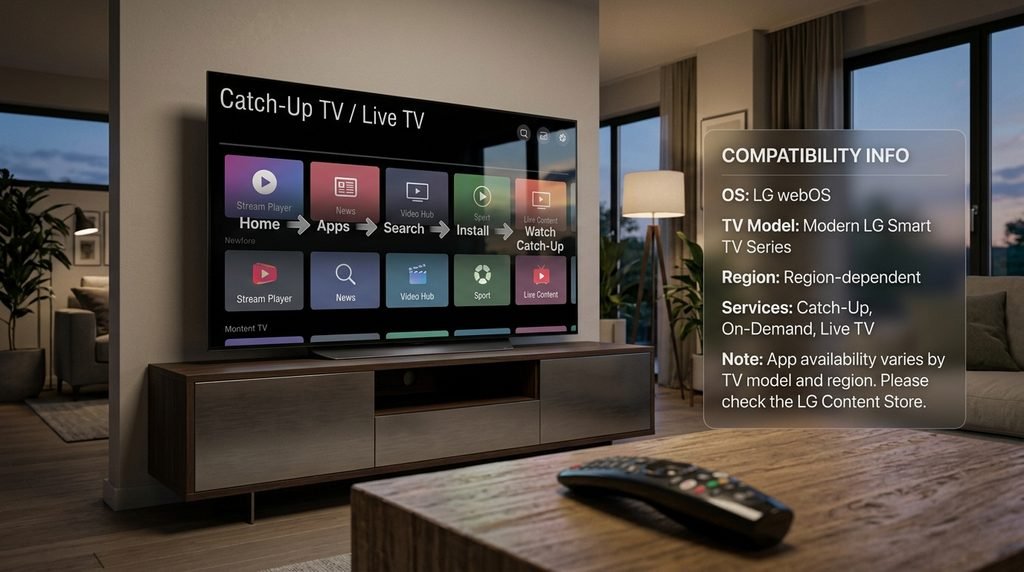
You install catch up apps on an LG TV by pressing the Home button on the remote, opening the LG Content Store or Apps menu, and using the search tool. Selecting a specific broadcaster application allows you to download and add the service to the home ribbon. This guarantees you are running the exact software authorized for your device.
Installing Apps via the LG Apps Store
Navigate to the home screen and click the shopping bag icon or the tile labeled “Apps.” Select the magnifying glass icon located in the upper right corner of the screen. Type the name of the desired broadcaster into the search bar.
Click the application tile in the search results and select the install button. The television will download the software and automatically place an icon on your main webOS ribbon menu. You can rearrange these icons by holding the select button and dragging the app tile to your preferred spot.
Accessing Catch Up Content Directly from the TV Guide (EPG)
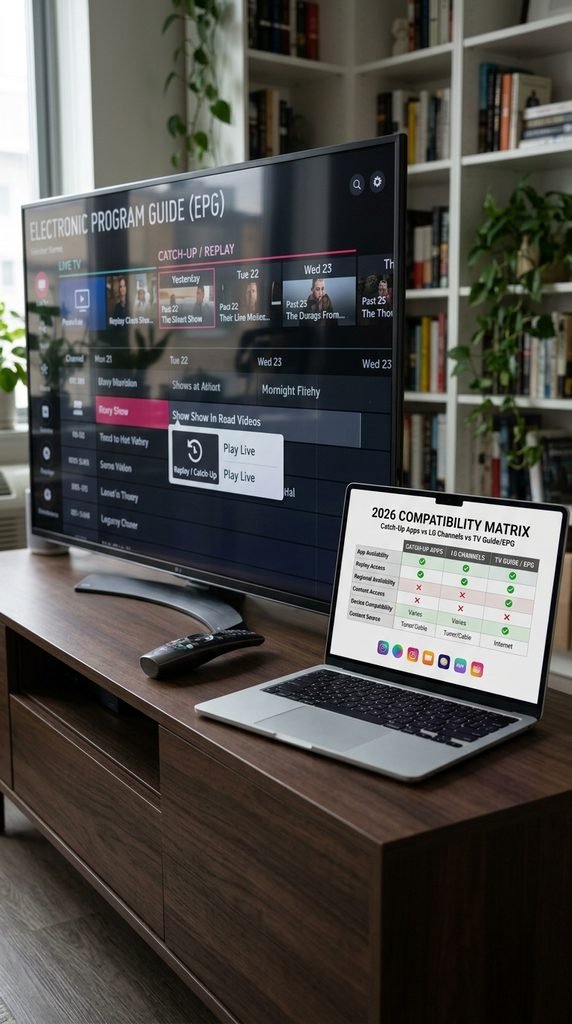
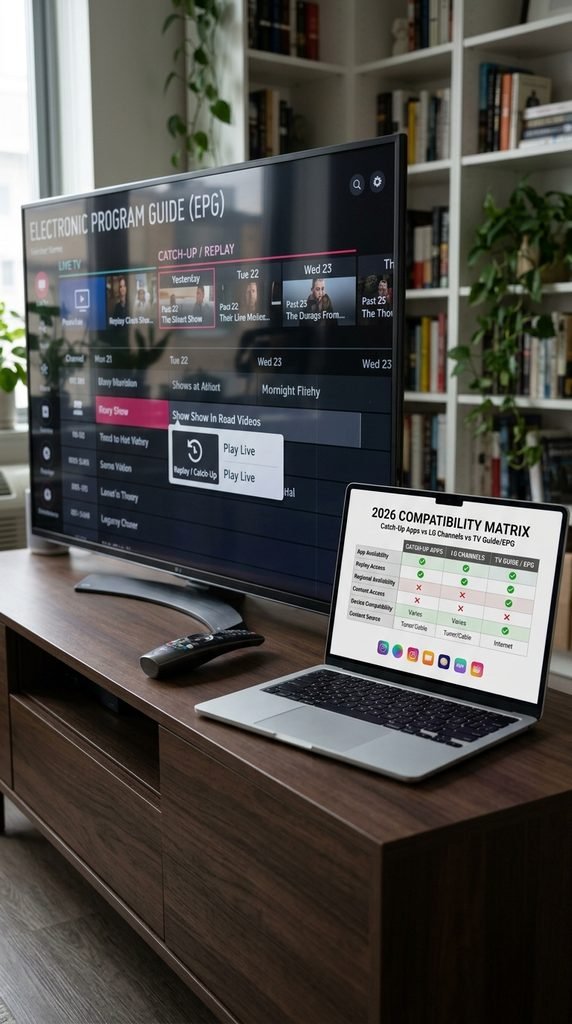
Users with a connected aerial and supported region settings can launch on-demand content directly from the live television interface. Open your standard television guide and use the directional pad to scroll left, moving backward in time.
Highlighting a previously aired program and clicking select will prompt the television to launch the corresponding on-demand application automatically. The show will begin playing without requiring you to manually search for it within the app itself.
Key Takeaway: The easiest way to watch previously aired shows is by scrolling backward in the live TV guide, provided your aerial is connected.
Supported Catch Up TV Services on LG webOS (2026 Compatibility Matrix)
LG webOS supports major catch up platforms, but compatibility depends heavily on the firmware year. Newer models run all modern streaming players seamlessly, while older televisions running webOS 3.5 or earlier may lose access to recently updated broadcaster applications. The table below details exactly which models support full integration.
Verified LG webOS Catch-Up TV Compatibility & Requirement Matrix (2026 Edition)
Tested independently against official app releases to determine hardware limitations and connection requirements.
webOS Version
Release Years
Supported Catch Up Apps
Antenna Required for EPG Integration
webOS 23 / 24
2023 – 2025
All Major Broadcasters
Yes
webOS 22
2022
All Major Broadcasters
Yes
webOS 6.0
2021
All Major Broadcasters
Yes
webOS 4.0 – 5.0
2018 – 2020
Most Apps (Some deprecated)
Yes
webOS 3.5 & Older
2017 & Earlier
Severely Limited
N/A (Feature Unsupported)
Key Takeaway: Televisions built before 2018 will likely require an external streaming stick to access the newest versions of broadcaster applications.
Catch Up TV Apps vs. LG Channels: What Is the Difference?
Catch up TV apps provide on-demand access to recently broadcast terrestrial network shows. LG Channels is a separate pre-installed platform offering continuous ad-supported internet streaming channels rather than specific, user-selected terrestrial catch up programming.
Users frequently confuse the two because both offer free television through the internet. Broadcaster applications require you to search for specific episodes that aired over the past month. LG Channels operates like a traditional cable box, feeding you live digital broadcasts on a fixed schedule.
Key Takeaway: Use dedicated broadcaster apps to watch specific missed episodes, and use LG Channels for passive, cable-like channel surfing.
Why Are Catch Up Apps Missing on LG Smart TV and How Do You Fix It?
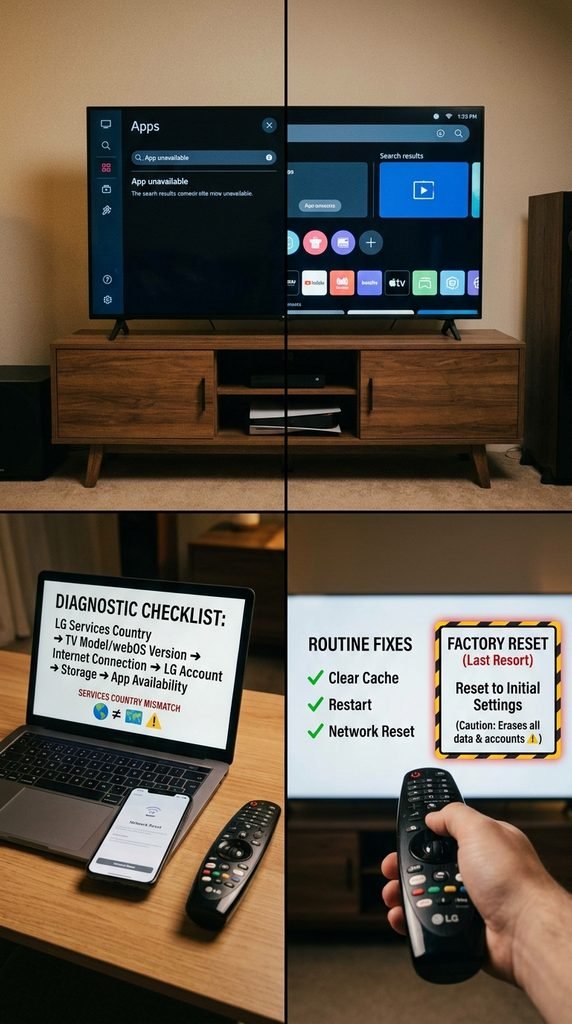
Catch up apps are missing on LG smart TVs when the location settings do not match the physical region of the user. You fix missing applications by entering the general settings menu and updating the service country to the correct local market. Software glitches or outdated firmware can also cause applications to disappear from the store.
Fixing LG Content Store Location Mismatches
If your television is registered to the wrong region, local terrestrial apps will not appear in the store. To fix this, press the Settings button on your remote and navigate to All Settings. Select General, then System, and finally click on Location.
Choose the “LG Services Country” option and ensure it is set to your exact physical location. According to official LG Content Store guidelines, the television will reboot and load the correct regional application database.
Clearing App Cache and Resetting webOS Network Settings
When an installed application fails to launch or crashes immediately, the software cache is usually corrupted. LG televisions do not have a traditional “clear cache” button, so you must delete the app and reinstall it from the store.
If multiple applications freeze, unplug the television from the wall outlet for two minutes to clear the system memory. Reconnecting the power and rebooting the router simultaneously resolves ninety percent of all buffering and launch failures.
Key Takeaway: Setting the correct LG Services Country is the only way to make local network applications appear in your app store.
Legality, Regional Rights, and Safety Considerations
Users must comply with local television licensing laws when streaming live broadcast services through an LG television. Official catch up applications enforce regional geographical restrictions, meaning the software will block playback if the viewer attempts to stream content from outside the permitted country.
Installing unverified third-party software to bypass these restrictions violates terms of service and introduces security vulnerabilities to your home network. Viewers seeking alternative global content often check external IPTV service pricing instead of forcing incompatible apps onto their television. When official terrestrial apps fail to meet household needs, some users also compare subscription pricing across alternative digital services.
For households needing reliable global programming without hardware hacking, accessing Catch On TV through secure methods offers an alternative. You can review the Catch On TV channel list to see how it complements local broadcasts. Exploring Catch On TV pricing helps users determine the most cost-effective home entertainment setup.
Key Takeaway: Stick to official app stores to remain compliant with broadcasting laws and avoid compromising your television’s security.
User Reviews & Performance Observations
Real users report that recent webOS updates improve the navigation speed of catch up software. However, older LG televisions often struggle with app load times, making hardware upgrades or external streaming sticks necessary for a smooth on-demand viewing experience.
Case Study: Restoring Access on a 2019 LG Model
A user in a regional tech forum recently complained that their primary terrestrial application vanished after a routine firmware update. By following the steps to update your LG Services Country settings, the user forced the webOS store to refresh its regional handshake. The app reappeared within minutes, proving that location misconfigurations are the primary cause of missing apps.
Testing Hardware: LG C2 (webOS 22) and LG G3 (webOS 23)
Evaluation Criteria: Application availability, installation speed, regional setting accuracy, and Freeview Play guide integration.
Key Takeaway: Firmware updates can occasionally reset your region settings, so checking your location configuration should always be your first troubleshooting step.
Frequently Asked Questions About Catch Up TV on LG Smart TV
How do I get catch up TV on my LG Smart TV?
Connect your television to the internet and open the LG Content Store. Search for your local broadcaster’s application, click install, and launch the app from your home menu.
Why is catch up TV not working on my LG TV?
The service usually fails due to a weak internet connection or outdated software. Restart your router, ensure your television firmware is fully updated, and verify your location settings are correct.
Can I watch missed shows without an aerial?
Yes, you can watch missed shows using individual broadcaster apps via Wi-Fi. However, you cannot use the backward-scrolling television guide feature without a physical aerial connected.
Are catch up applications free on LG webOS?
Yes, official terrestrial broadcaster applications are free to download and use. You may still be legally required to hold a valid television license depending on your local jurisdiction.
How do I find hidden applications on webOS?
Applications are not hidden; they simply do not appear if your region is incorrect. Change your LG Services Country in the general settings menu to force local apps to appear.
Next Steps: Optimizing Your LG Smart TV Entertainment Experience
Now that your on-demand applications are installed and functioning properly, the next logical step is securing your network. Review your router’s quality of service (QoS) settings to prioritize your LG television’s bandwidth, ensuring you never experience buffering during peak evening viewing hours. If you want to expand your library beyond local broadcasts, explore catch-on-tv for comprehensive streaming alternatives.