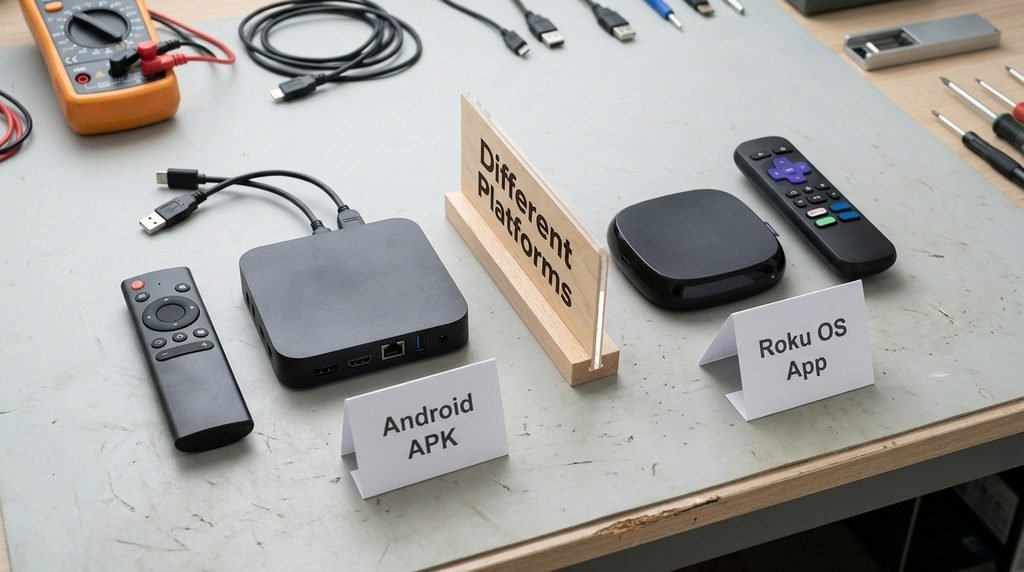
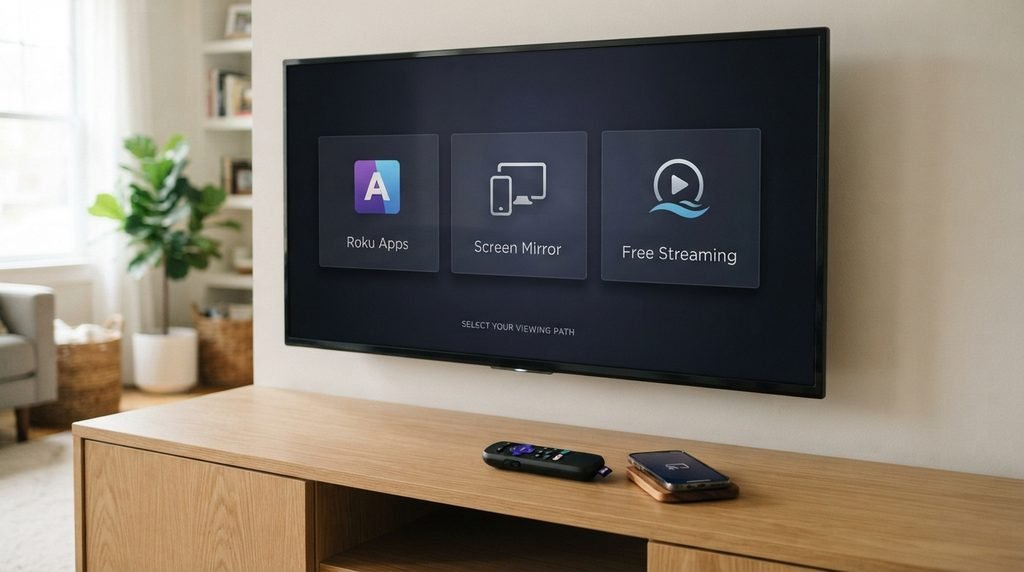
Catch On TV Roku setup is different from Firestick or Android TV because Roku does not run Android APK applications. If you already have compatible streaming access on an Android phone, Windows PC, iPhone, or iPad, the most practical Roku options are screen mirroring or AirPlay rather than trying to install a CatchON APK directly.
Roku officially supports screen mirroring from compatible Android and Windows devices, while compatible Roku models also support AirPlay from Apple devices. (Roku)
Last updated: September 21, 2026
Research method: This guide uses current Roku documentation for Roku OS, developer sideloading, screen mirroring, and device compatibility. CatchON-specific claims are separated from Roku’s documented features.
Table of Contents
Can You Install Catch On TV on Roku?
There is no normal Android-style installation route for Catch On TV on Roku. That is because Roku devices run Roku OS, not Android. An APK designed for Fire TV, Android TV, or an Android streaming box cannot simply be downloaded and opened on Roku.
This is where many CatchON tutorials become confusing. Instructions that tell you to enable unknown sources, install Downloader, or open an .apk file are generally intended for Android-based devices. Roku does have a developer sideloading feature, but it is designed for Roku applications built for Roku OS. Roku’s developer documentation shows its sideloading process uses Roku development packages rather than Android APK files. (Roku Developer)
Key Takeaway: Do not waste time trying to install an Android CatchON APK directly onto Roku.
Catch On TV Roku Compatibility Explained
The important question is not simply whether CatchON and Roku can work together. The real question is how the content reaches the Roku screen.
Method
Works With Roku?
Second Device Needed?
Difficulty
Android APK directly
No
No
Not applicable
Android screen mirroring
Yes, on compatible devices
Yes
Easy
Windows screen mirroring
Yes
Yes
Easy
Apple AirPlay
Yes, on compatible models
Yes
Easy
Native Roku app
Only if a legitimate Roku app exists
No
Easiest
Roku developer sideloading of Android APK
No
No
Not compatible
The simplest workaround for most people who already own Roku is therefore mirroring from another compatible device. That keeps you from buying new hardware just because an application was originally designed for a different operating system.
How to Screen Mirror Catch On TV to Roku
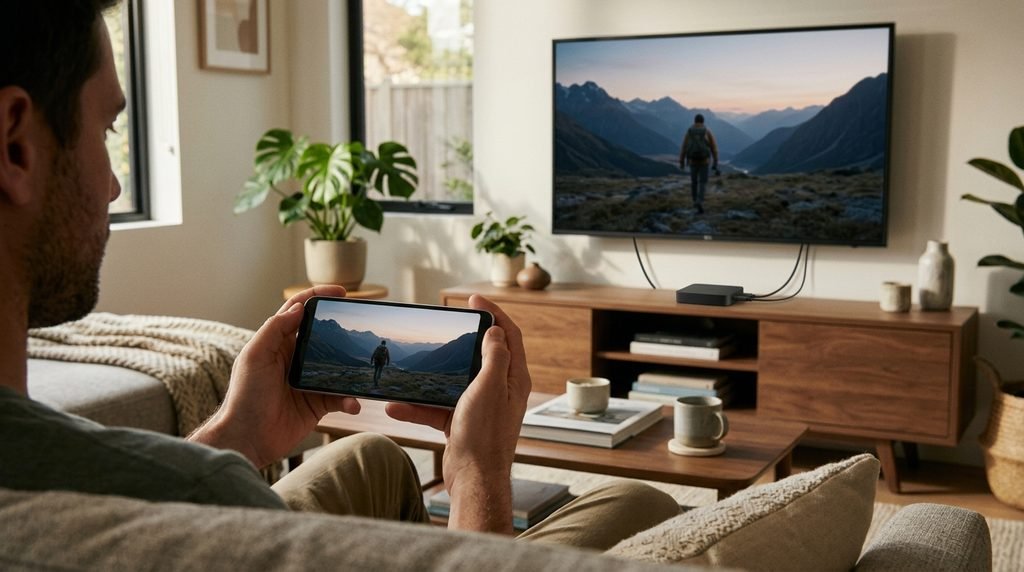
Screen mirroring displays your phone or computer screen on the television through Roku. Roku officially supports screen mirroring from compatible Android devices and Windows computers. Once connected, whatever appears on the source device can appear on the Roku-connected television. (Roku)
From an Android Phone
The exact feature name depends on the phone manufacturer.
You may see names such as:
Smart View
Screen Mirroring
Wireless Display
Cast Screen
Screen Share
A typical setup looks like this:
Connect the Roku and Android phone to the same network.
Open the phone’s screen-mirroring feature.
Search for nearby displays.
Select your Roku device.
Accept the connection request on Roku.
Open your streaming application on the phone.
Rotate the phone to landscape for full-screen viewing.
On Samsung devices, for example, Roku’s guide specifically describes using Smart View to select the Roku device.
From a Windows Computer
Windows can also connect to compatible Roku devices as a wireless display.
On Windows 11, the basic process is:
Make sure the computer and Roku are on the same network.
Press Windows + K.
Open the wireless-display list.
Select your Roku.
Accept the request on the television.
Open your content on the PC.
The Roku then acts as the larger display.
Key Takeaway: Mirroring runs the app on your phone or computer; Roku displays the result.
How to Use Catch On TV Roku With iPhone
Apple devices use AirPlay rather than the same Miracast-style system commonly used by Android and Windows. Compatible Roku players and Roku TVs can receive video or mirror an iPhone, iPad, or Mac through AirPlay.
The basic process is:
Connect the Apple device and Roku to the same Wi-Fi network.
Open Settings on Roku.
Find Apple AirPlay and HomeKit.
Make sure AirPlay is enabled.
Open Control Center on the iPhone or iPad.
Select Screen Mirroring.
Choose your Roku.
Enter the television code if Roku displays one.
Compatibility depends on the Roku model and Roku OS version, so older Roku hardware may behave differently. This approach is useful when someone already has access to compatible content on an Apple device but wants to watch it on the larger television.
Screen Mirroring vs Casting on Roku
Screen mirroring and casting are often treated as the same thing, but they work differently. Screen mirroring reproduces almost everything shown on the source device. Your phone or PC stays actively involved while you watch.
Casting sends supported media to an application on Roku, allowing Roku to handle more of the playback itself.
Feature
Screen Mirroring
Casting
Mirrors entire screen
Yes
No
Requires matching Roku app
Usually no
Usually yes
Phone remains involved
Yes
Less
Works as CatchON workaround
Potentially
Only with compatible apps
Easy to set up
Yes
Depends on app
For Catch On TV Roku, screen mirroring is generally the more flexible concept because it does not require a dedicated CatchON Roku channel.
Can You Get Catch On TV Roku Free?
This keyword causes another common misunderstanding. Using screen mirroring itself does not normally create a separate Roku subscription fee. If you already own the compatible devices, you may be able to mirror without buying additional streaming hardware. But Catch On TV Roku free does not mean Roku turns a paid streaming subscription into a free one.
Think about it this way:
Roku connection method = how the picture reaches your TV
Streaming subscription = whether you have permission and access to the content
Those are separate things. You can review general CatchON information on the CatchON TV homepage.
Key Takeaway: Screen mirroring can be a free connection method, but it does not create free subscription access.
Why Catch On TV APK Does Not Install on Roku
An APK is an Android application package. Roku OS does not use Android applications as its normal app format. That means changing the APK filename, copying it to a USB drive, or enabling Roku developer mode does not magically convert an Android application into a Roku application.
This also explains why a tutorial can work perfectly on:
Firestick
Fire TV
Android TV
Google TV
Android box
and completely fail on Roku.
The problem is not necessarily the CatchON file. The operating systems are simply different.
What About Roku Developer Mode?
Roku does allow developers to sideload software while developing Roku applications. That feature sometimes creates confusion because users see the word sideload and assume it means Android APK sideloading. It does not. Roku developer sideloading is for software built specifically for Roku’s own application platform.
Key Takeaway: Roku developer mode is not an APK compatibility feature.
Best Catch On TV Roku Setup by Device
Instead of trying random installation guides, start with the device you already have.
Android Phone + Roku
Use screen mirroring. This is usually the most straightforward option when the application already works on your Android phone.
Windows PC + Roku
Use Roku as a wireless display. This can also be useful if content is available through a compatible browser or Windows application.
iPhone or iPad + Roku
Check whether your Roku supports AirPlay. If it does, AirPlay or screen mirroring from the Apple device is normally the cleaner route.
Firestick + Roku TV
If you own a television with Roku built in but also have a Firestick, connect the Firestick to an HDMI port. You can then switch the Roku TV input to the Firestick and use Android/Fire TV-compatible applications there. This is often simpler than trying to make a Roku TV behave like an Android TV.
Catch On TV Roku Troubleshooting Guide
If mirroring is not working, do not immediately assume the streaming application is broken. Start with the connection between your devices.
Roku Does Not Appear on Your Phone
Check that:
Both devices are on the same Wi-Fi network.
Screen mirroring is enabled on the phone.
Your Roku supports the feature.
Roku has not blocked that particular device.
The Roku software is updated.
Guest networks can also prevent devices on the same router from seeing one another.
Roku Rejects the Mirroring Request
Check Roku’s screen-mirroring settings.
Depending on your configuration, Roku can:
Always allow a device
Allow it once
Block it once
Always block it
If the phone was accidentally added to the blocked-device list, connection attempts may fail repeatedly.
Video Plays on Phone but Not TV
Some applications restrict screen recording or mirroring for protected content. If the menus mirror correctly but video itself becomes black, blank, or unavailable, the application’s content protection may be involved. Do not attempt to bypass content-protection systems.
Mirroring Keeps Freezing
The phone and Roku are sending video across your local network, so Wi-Fi quality matters.
Try:
Moving the source device closer to the router.
Closing unnecessary apps.
Restarting Roku.
Restarting the phone.
Testing a different video.
Checking whether normal mirroring also freezes.
If everything mirrored to Roku is unstable, investigate the local connection before blaming CatchON.
The Catch On TV Roku Decision Tree
Use this instead of experimenting blindly.
Do you see a verified CatchON app in the Roku Store?
Yes → verify who publishes it before signing in.
No → continue.
Do you have CatchON-compatible access working on Android or Windows?
Yes → try screen mirroring.
No → continue.
Do you have it working on iPhone, iPad, or Mac?
Yes → check Roku AirPlay compatibility.
No → Roku may not be the appropriate device for that particular application.
This is the simplest way to avoid downloading random APKs, entering developer mode unnecessarily, or buying another device before you know you need one.
Should You Buy a Firestick Instead?
Not automatically. If you already own Roku and mirroring works well, buying another streaming device may solve a problem you do not actually have. A Firestick or Android TV device becomes more attractive when you regularly use applications distributed specifically for Android and want them running directly on the television without keeping a phone involved.
So the decision is simple:
Occasional use + already own Roku → try mirroring first.
Frequent Android APK use → an Android-based device may be more convenient.
Hardware should follow your apps, not the other way around.
Important CatchON Status Warning for 2026
There is one additional issue for people using an older original CatchON account.
The Channelmoa website currently states that its Channelmoa/Catchon service is permanently discontinued and cannot be restored. It also warns that other websites using the Catchon or Channelmoa names are not affiliated with that former service. That does not mean every current website using the words “CatchON TV” is necessarily the same operation.
It means you should verify who operates a service before giving it an old password, payment information, or other account credentials. If you are mainly researching what channels have historically been associated with CatchON, see the CatchON TV channel list.
Key Takeaway: Device compatibility and provider identity are separate questions. Roku working does not verify the service behind an app.
Catch On TV Roku FAQ
Can I Install Catch On TV Directly on Roku?
You cannot install an Android CatchON APK directly as a normal Roku application. Roku uses Roku OS, so Android installation instructions made for Firestick or Android TV do not directly apply.
How Do I Watch Catch On TV on Roku?
If you already have compatible access on another device, screen mirroring from Android or Windows is one practical option. Compatible Apple users can also investigate AirPlay.
Can I Download CatchON TV APK on Roku?
Downloading an Android APK does not make it compatible with Roku OS. Roku developer mode is intended for developing and testing Roku applications, not converting Android apps.
Is Catch On TV Roku Free?
Screen mirroring itself may not require an additional Roku subscription, but Roku does not make a separate paid streaming service free. Subscription access and the method used to display content are different things.
Why Is Catch On TV Not Working on Roku?
Possible causes include trying to install an incompatible Android app, unsupported mirroring hardware, devices being on different networks, blocked mirroring permissions, or problems with the underlying streaming service.
What Should You Do Next?
For most existing Roku owners, the best order is:
Check for a legitimate native app → try Android/Windows screen mirroring → try AirPlay if you use Apple → consider different hardware only if you need a direct Android installation.
Do not enable developer mode or download random files simply because a guide promises a CatchON Roku installation.
The core limitation is straightforward: Roku is not an Android streaming device. Once you understand that, the available options become much easier to choose.