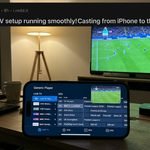
CatchON TV can be used on an iPhone, but you should not expect the Android CatchON APK used on Firestick to install on iOS. The normal iPhone approach is to install a compatible IPTV player from Apple’s App Store, add the subscription credentials supplied by your provider, and then watch directly on the phone or use AirPlay where supported.
During research for Catch ON TV iPhone, I did not find a clearly verifiable official CatchON-branded iPhone application that should be universally recommended to every user. That makes the exact account format supplied by your provider—such as an M3U playlist or server/login credentials—more important than searching for an app with the CatchON name.
Last updated: September 23, 2026
Research method: Current Apple iPhone and AirPlay documentation was checked alongside the live search results for this exact keyword. No iPhone subscription was activated as part of this article.
Table of Contents
Does CatchON TV Work on iPhone?
Yes, CatchON TV can work on an iPhone when the subscription provides credentials that a compatible iOS IPTV player can read. The setup is different from Firestick because iPhones install consumer apps through Apple’s App Store rather than downloading Android APK files.
Apple’s current instructions say iPhone users obtain apps through the App Store, where they can search for an app and install it using the Get or purchase button. (Apple Support)
On Android-based hardware, users often talk about downloading a specific CatchON APK. An iPhone does not install Android APK files, so following an old Firestick tutorial on iOS will get you nowhere.
The player is simply the software that displays the subscription. The television service and the player do not necessarily come from the same company. This also means paying for a premium IPTV player in the App Store would not automatically pay for your CatchON subscription.
What You Need Before Setup
Before installing anything, collect the account information supplied with your subscription.
Depending on the service, that might include:
Username
Password
Server or portal URL
M3U playlist URL
Activation information
Subscription expiration date
Do not assume that a prepay code used in one CatchON app can simply be entered into any iPhone IPTV player. Different players support different login methods.
Key Takeaway: On iPhone, the account format matters more than finding an app with “CatchON” in its name.
How Do You Set Up CatchON TV on iPhone?
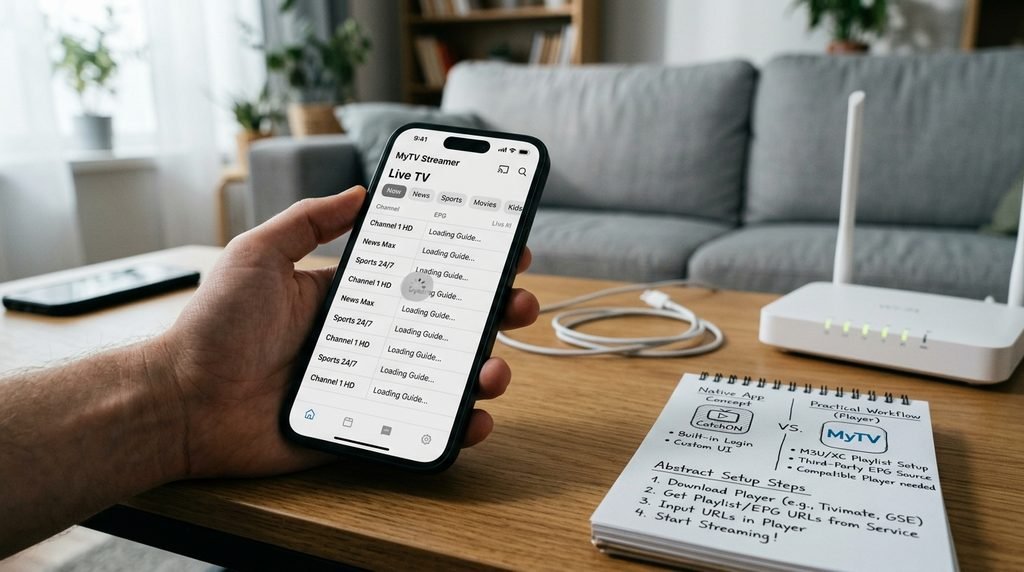
The basic Catch ON TV iPhone setup is to install a compatible IPTV player from the App Store, open the player, add the credentials supplied with your subscription, and allow the channel list and program guide to load. The exact button names vary between players, but the account flow is similar. Avoid installing an app simply because its screenshots use familiar CatchON wording. Verify that the player supports the credential format you actually have.
Install a Compatible Player
Open the App Store on your iPhone and search for an IPTV player that supports the account format provided by your service.
Before installing, check:
Recent update date
iOS compatibility
Supported playlist/login formats
Privacy information
Whether basic playback is free or requires an in-app purchase
Recent App Store reviews
You do not need an Android Downloader application or APK file on an iPhone. That is one of the biggest differences between CatchON TV on iPhone and CatchON TV on Firestick.
Add Your CatchON Credentials
Open the player and look for an option such as:
Add Playlist
Add User
Xtream-style login
M3U URL
Portal Login
Use whichever format matches the information your provider supplied. If you were given a server address, username and password, enter all three exactly. A missing character in the URL or an accidental space in the username can prevent the player from loading anything. Do not post these credentials publicly when asking for troubleshooting help.
Load Channels and the TV Guide
After the account is added, the player may need time to download:
Live-channel categories
Channel names
Electronic program guide data
Movie or series information
Channel icons
A large account can take longer to populate on the first launch than subsequent launches. Once everything finishes, test one ordinary live channel before changing dozens of settings. If nothing loads at all, verify the credentials first rather than assuming your iPhone is incompatible.
For an overview of the types of programming historically associated with the service, see the CatchON TV channel list.
Key Takeaway: Install the player first, enter the exact credentials second, and troubleshoot playback only after the account loads successfully.
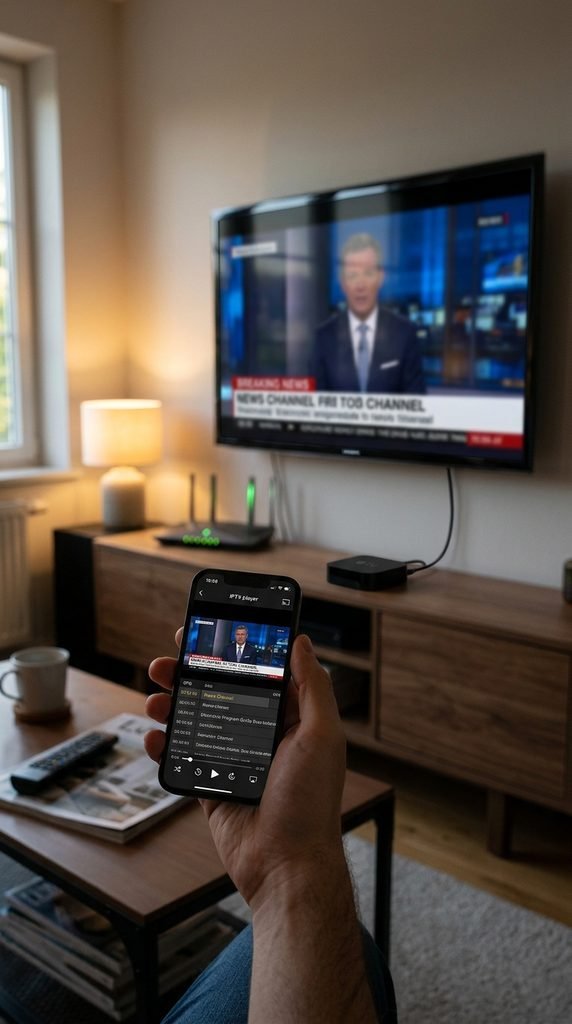
Can You Watch CatchON TV Through AirPlay?
Yes, an iPhone can send supported video or mirror its screen to Apple TV or compatible AirPlay televisions, although the IPTV player itself must cooperate with that playback method. Apple says the iPhone and receiving device generally need to be connected to the same Wi-Fi network for AirPlay streaming.
AirPlay to Apple TV
If the IPTV player supports normal AirPlay video output:
Connect the iPhone and Apple TV to the same Wi-Fi.
Start the stream on the iPhone.
Tap the AirPlay control if available.
Select the Apple TV.
Enter the displayed AirPlay code if prompted.
Apple also supports Screen Mirroring through Control Center, which can duplicate the iPhone display on Apple TV.
There is an important limitation: some video apps restrict or behave differently with mirroring. If direct AirPlay fails while ordinary phone playback works, the player may be the issue rather than CatchON itself.
AirPlay to a Compatible Smart TV
You may not need an Apple TV box if your television supports AirPlay. Apple says video can be streamed from an iPhone to an AirPlay-compatible television, again with both devices normally on the same Wi-Fi network.
If your television never appears in the destination list, check AirPlay settings on the television itself before reinstalling the IPTV player.
Key Takeaway: AirPlay is useful for moving an iPhone stream to a larger screen, but it is separate from the CatchON account itself.
What Can You Watch on Catch ON TV iPhone?
The iPhone should generally display whatever content the subscription account and chosen player make available, rather than having a special mobile-only channel package. The categories may include live television, sports, movies, series and international programming depending on the exact provider and account.
The biggest practical difference is screen size.
An iPhone can be excellent for:
Watching while traveling
Checking a live game away from home
Testing whether an account is working
Watching news during a commute
Moving a stream to a television with AirPlay
It is less ideal for navigating enormous channel libraries for hours compared with a television interface.
If you care about only a few channels, use the player’s Favorites feature if available. That makes mobile viewing dramatically easier than scrolling through hundreds of categories each time.
Why Is CatchON TV Not Working on iPhone?
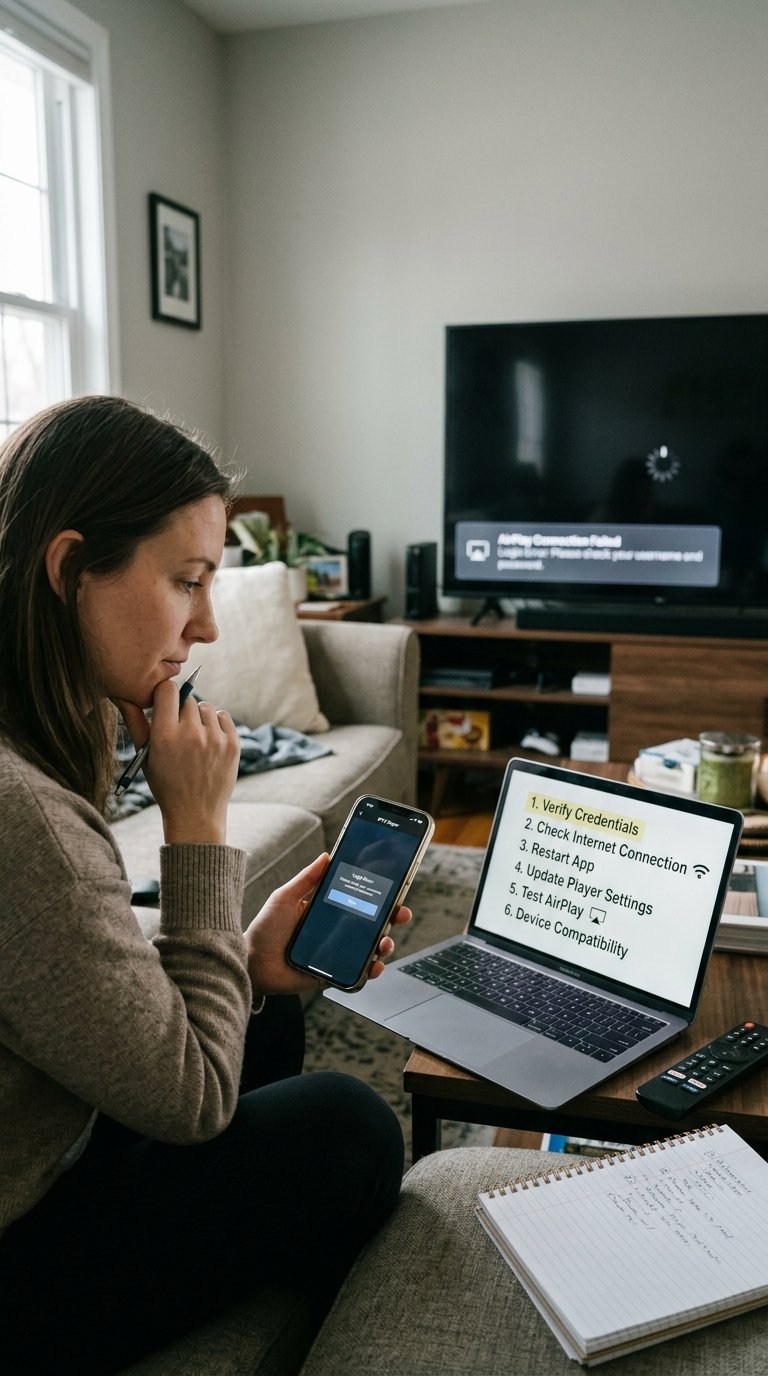
Most Catch ON TV iPhone problems can be separated into three groups: the account will not load, channels load but will not play, or playback works on the iPhone but fails when sent through AirPlay. Identifying which stage fails prevents unnecessary reinstallations.
Use this troubleshooting table first:
Problem
Check First
Account will not add
Username, password and server URL
Categories appear but are empty
Refresh/reload playlist
Channels appear but won’t play
Account status and connection
One channel fails
Individual feed
Everything buffers
Wi-Fi/cellular connection
Works on Wi-Fi but not cellular
Mobile-data settings
Works on phone but not AirPlay
Player/AirPlay compatibility
Apple TV not visible
Same network + AirPlay settings
App crashes repeatedly
iOS/app compatibility and updates
Login or Credential Errors
If the player refuses the account completely, start with the credentials. Check capitalization, punctuation and the full server address. Copying a URL incompletely is enough to prevent authentication. If the same credentials work on another device but not your iPhone, the player configuration becomes a stronger suspect. If the credentials fail everywhere, investigate the account before repeatedly changing iPhone settings.
Playback and Buffering Problems
If the channel list loads but video buffers, test whether the issue follows the connection.
Try:
Wi-Fi → cellular data → another Wi-Fi network
If one connection works while another fails, you have learned more than a reinstall would tell you. Also test several channels. One dead feed is not proof that the entire account is broken.
AirPlay Connection Problems
For AirPlay problems, make sure both devices are on the same network and that the television or Apple TV has AirPlay enabled. Apple specifically notes the shared-network requirement in its AirPlay documentation.
If ordinary YouTube or Photos content AirPlays correctly but your IPTV player does not, the problem is probably player-specific. If nothing on the iPhone can see the television, troubleshoot AirPlay itself.
Key Takeaway: Determine whether the failure is account → playback → AirPlay before changing settings.
How Much Mobile Data Does Streaming Use?
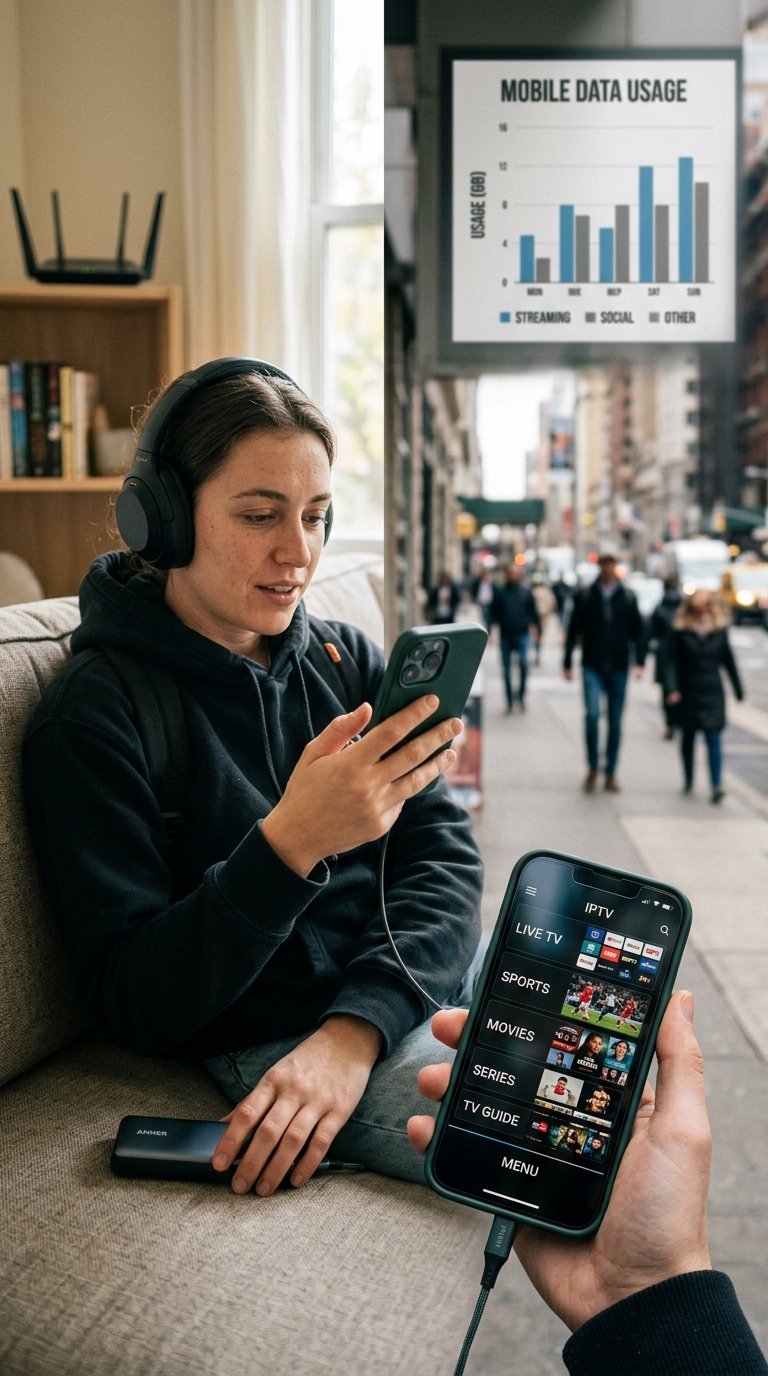
CatchON TV on iPhone can consume substantial mobile data because live television is continuous video streaming. The exact amount depends on bitrate, resolution and compression, so there is no honest single number that applies to every channel.
As a practical rule, higher-quality streams consume more data.
If you have a limited cellular plan:
Prefer Wi-Fi for long viewing sessions.
Avoid leaving streams running in the background unnecessarily.
Check iPhone cellular-data usage periodically.
Lower playback quality if your chosen player provides the option.
Downloading the app itself is usually tiny compared with hours of video.
This matters especially for sports, where someone may leave a stream running for two or three hours without realizing how much cellular traffic is being used.
For general CatchON information outside the iPhone setup, start with the CatchON TV homepage.
Catch ON TV iPhone Setup Decision Guide
This is the fastest way to choose the correct setup.
Your Situation
Best Approach
You have username/password/server
Use a player supporting that login format
You have an M3U URL
Use an M3U-compatible iOS player
You only have an Android APK
Ask for iOS-compatible credentials
You only have a prepay code
Confirm which iOS player/provider system supports it
You want to watch only on iPhone
Use the player directly
You want a bigger screen
Use AirPlay if the player supports it
You own Apple TV
AirPlay or a compatible tvOS player
Account works elsewhere, not iPhone
Check player setup
Nothing works anywhere
Investigate the account/service first
This decision table is more useful than a single generic “download this app” recommendation because CatchON-branded accounts do not all necessarily use one identical backend or credential format.
Catch ON TV iPhone FAQ
Does CatchON TV Work on iPhone?
Yes, CatchON TV can work on iPhone when you have subscription credentials compatible with an iOS IPTV player. You cannot install an Android CatchON APK directly on iOS.
Is There a CatchON TV App for iPhone?
We did not find enough independent evidence to recommend one universal official CatchON-branded iPhone app for every account. The safer approach is to use a reputable App Store IPTV player compatible with your provider’s credentials.
Can I Install a CatchON APK on iPhone?
No. APK is an Android application package format. iPhone applications are distributed through Apple’s iOS ecosystem rather than being installed as Android APK files.
Can I AirPlay CatchON TV From iPhone?
Yes, if the player supports AirPlay or screen mirroring. Your iPhone and Apple TV or AirPlay-compatible television should normally be connected to the same Wi-Fi network.
Why Does CatchON Work on Firestick but Not iPhone?
The devices use different operating systems and applications. Your Firestick may use a dedicated Android-style app, while iPhone generally requires an iOS player plus compatible account credentials.
Can I Watch CatchON TV on iPhone With Cellular Data?
Technically, a compatible player can stream over cellular data if your account and iPhone settings allow it. Video can consume significant data, so monitor usage if your mobile plan has a limit.
What Should You Do Next?
For Catch ON TV iPhone, start with your subscription credentials rather than searching for an Android APK.
If you have an M3U URL or server/login credentials, choose a reputable compatible player from the App Store, add the account and test one live channel. If you only received an Android application or prepay code, contact the exact provider responsible for your account and ask what iOS login method it supports before downloading random apps.
Once direct playback works on the iPhone, set up AirPlay separately if you want the stream on a larger screen.