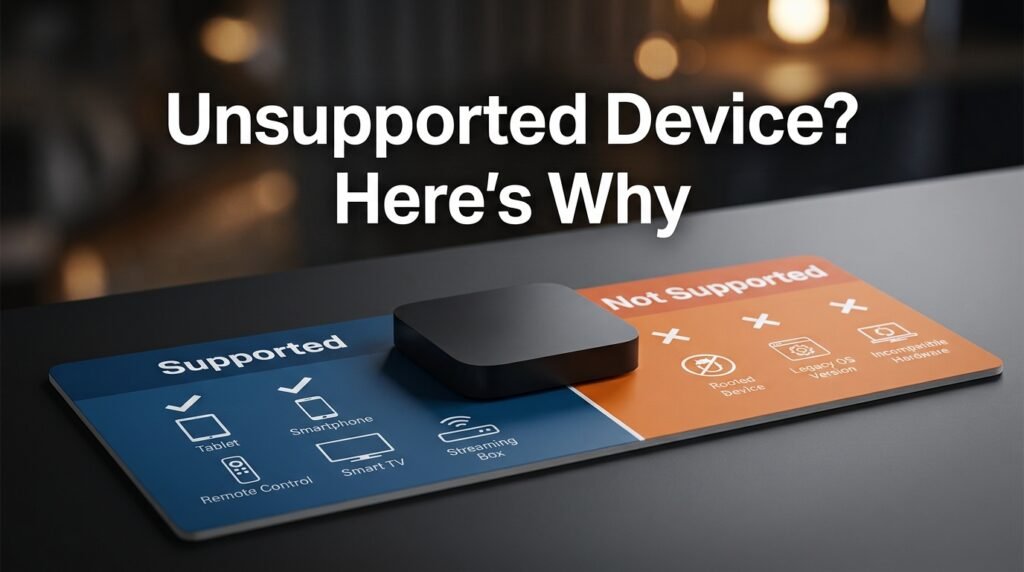
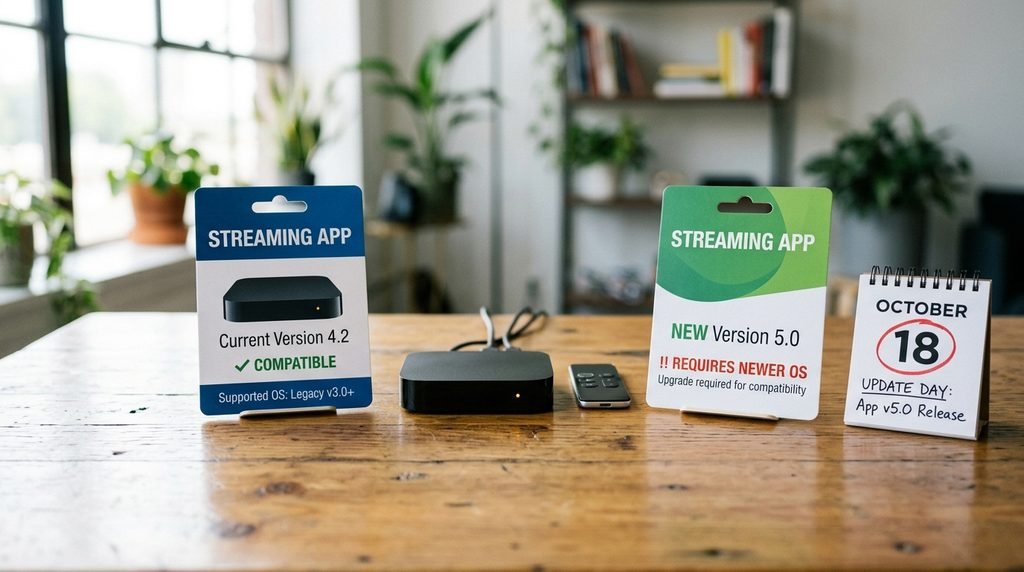
The CatchON TV unsupported device message usually means the app has decided that your current streaming device, operating-system version, app build, or registered device ID does not meet what it expects. It does not automatically mean your Firestick is broken.
This error has been reported even on Fire TV devices where CatchON had previously worked. One CatchON user described reinstalling the app on the same Firestick and then immediately receiving an “unsupported device” message, which suggests that app-version or account/device-registration changes can matter just as much as the physical hardware. (Reddit)
Last updated: September 22, 2026
Best first move: Do not factory-reset your Firestick or delete every working CatchON installation. Identify your device model, check the app version, restart once, and determine whether the error appeared after an update, reinstall, or device change.
Table of Contents
What Does CatchON TV Unsupported Device Mean?
An unsupported device message means the application is refusing to continue because something about the device no longer matches its compatibility rules. Those rules can be based on hardware model, operating-system version, Android API level, processor architecture, required software features, or restrictions built directly into the application.
Android applications can declare hardware and software requirements that determine which devices are considered compatible. Google documents that apps can require particular device features, while Amazon similarly explains that Fire TV apps can be marked incompatible when the app binary or its requirements do not match a specific device.
That technical background is important because the error can appear even when your television, Wi-Fi, and Firestick otherwise work perfectly.
Key Takeaway: “Unsupported device” is primarily a compatibility or authorization message, not a general internet-connection error.
Why CatchON TV Says Unsupported Device
There is not one confirmed cause that applies to every CatchON installation. The most useful approach is to look at when the error started, because that usually narrows the problem quickly.
Common possibilities include:
CatchON was reinstalled with a different app version.
The streaming device is running an older Fire OS or Android version.
The APK was built for hardware different from your device.
A newer app version stopped supporting an older model.
The app’s internal device check is rejecting the hardware.
Your subscription has reached a device or connection limit.
Your old device registration remains associated with the account.
The installed APK is incomplete or corrupted.
You installed a different CatchON-branded app than the one previously used.
The last point matters more than it might seem. Several unrelated CatchON-branded downloads and websites exist online, so installing “CatchON TV” again does not guarantee that you installed the same application build you previously had.
The Error After Reinstalling CatchON TV
This is one of the most interesting cases.
A user in the CatchOnTV community reported that CatchON had previously worked on a Firestick, but after reinstalling it, the app showed “unsupported device” and immediately exited. That pattern is difficult to explain by saying the Firestick itself suddenly became incompatible overnight.
A reinstall can change several things at once. You may receive a newer APK, the app can generate a new local device identifier, cached registration information can disappear, or the service can apply different compatibility rules than it did when the older installation was first activated.
That is why uninstalling and reinstalling repeatedly is not the first fix I would use. If the old version worked but the new installation does not, the difference between those installations is your most valuable clue.
CatchON TV Unsupported Device on Firestick
Fire TV devices are particularly relevant because Fire OS is based on Android. Amazon confirms that Android applications can be installed on Fire TV, including through sideloading, but that does not mean every Android APK is compatible with every Fire TV generation.
Different Firesticks run different Fire OS versions and underlying Android API levels. Amazon currently documents multiple Fire OS generations ranging from older Android-based releases to much newer versions, so two devices that both say “Fire TV Stick” may have significantly different software underneath.
This creates situations where:
Older CatchON APK + older Firestick = works
while:
Newer CatchON APK + same Firestick = unsupported
or the opposite can happen. The Firestick name alone is therefore not enough. You need the exact model and software version.
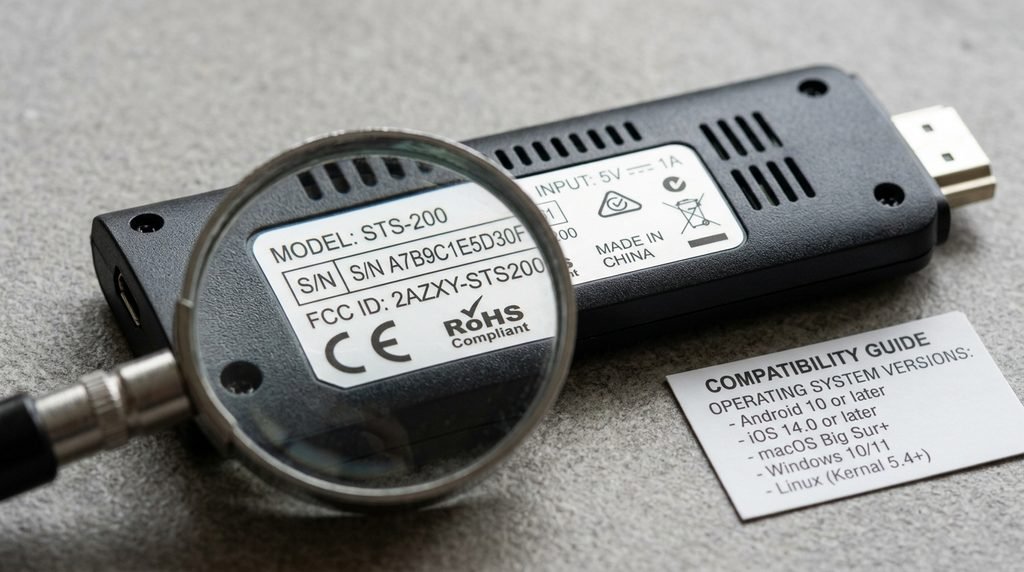
Check Your Fire TV Model First
On Fire TV, open the device settings and look for information about your device model and software version.
You want to record:
Fire TV model
Fire OS version
Available storage
CatchON app version, if visible
Whether CatchON worked before
Whether the error began after an update or reinstall
Do this before deleting anything.
If you contact whoever supplied your subscription or app, saying “CatchON doesn’t work” gives them very little information. Saying “Fire TV Stick 4K, CatchON worked before reinstalling, new build immediately says unsupported device” gives them something useful to investigate.
Is an Old Firestick the Problem?
It can be, but do not assume that immediately.
Older Firesticks may eventually become incompatible with newer applications because their operating system, processor architecture, or supported APIs differ from newer models. App developers can also intentionally stop targeting older hardware.
Amazon’s own app-development documentation explains that supported Fire TV devices depend on the characteristics of the app binary and its declared requirements. A device can therefore be marked unsupported even though the Fire TV itself continues functioning normally.
The useful test is whether other users with the exact same Firestick generation and app version experience the same error. Buying a new Firestick before establishing that would be premature.
Could the CatchON Device Limit Cause It?
Possibly, but this one needs to be treated as a user-reported explanation rather than a confirmed universal CatchON rule.
In the Reddit thread about the exact CatchON unsupported-device error, one commenter suggested that the account may have exceeded its allowed device/IP registrations and later suggested having support reset the device ID. (Reddit)
That would make sense technically because streaming subscriptions sometimes restrict simultaneous connections or registered devices. A reinstall, replacement Firestick, or new device identifier could potentially make the system interpret your hardware as another device.
However, the thread does not provide enough evidence to say that this is definitely what the CatchON error means.
Treat it as something to check if:
Your subscription was already used on several devices.
You recently replaced a Firestick.
You reinstalled CatchON multiple times.
The app worked on the same model before.
Another registered device still works normally.
The unsupported-device message appears immediately after login or activation.
In that case, resetting the account’s registered device list may be more useful than replacing hardware.
CatchON TV Unsupported Device Decision Table
Use the pattern of the failure rather than trying random fixes.
What Happened
Most Useful Thing to Check
Worked before reinstall
App version or device registration
Worked before app update
New-version compatibility
Never worked on this Firestick
Hardware/OS compatibility
Works on newer Firestick only
Older device support
Works on another identical Firestick
Installation/account issue
Several devices already registered
Device/account limit
APK will not install at all
APK architecture/OS compatibility
APK installs but immediately says unsupported
App-side compatibility check
App worked until factory reset
Lost local registration/app version
Other apps also malfunction
Device or OS problem
This is much more effective than assuming every unsupported-device error has the same cause.
Fix 1: Restart Before Changing Anything
Start with the boring fix because it costs nothing and does not destroy information.
Completely close CatchON, restart the Firestick or Android TV device, and open the app again. If the unsupported-device message appears instantly after rebooting, move on. A restart can fix temporary app or system-state problems, but it will not make genuinely incompatible hardware compatible. If the exact same message returns immediately, repeatedly restarting is unlikely to help.
Fix 2: Clear Cache, Not App Data
If your device lets you manage individual applications, try clearing the cache first.
Cache consists mainly of temporary files. Clearing app data is more aggressive and can remove stored login information, activation information, preferences, or local configuration.
That distinction matters with older CatchON installations because you do not want to remove credentials and then discover that you cannot restore the same app version or account configuration. Use the least destructive fix first.
Fix 3: Compare the App Version
If CatchON worked before you updated or reinstalled it, find out whether you now have a different application version. This may be the strongest clue in the entire troubleshooting process.
Suppose:
Version A worked yesterday.
You uninstalled it.
Version B was installed today.
Version B says unsupported device.
That does not prove Version B is incompatible, but it makes reinstalling the television, resetting the router, or purchasing new hardware look much less logical than investigating the app build.
Do not download random “older CatchON APKs” from unknown websites merely to test this theory. An APK can contain executable code, so source trust matters.
Fix 4: Check the Device Registration
If your plan allows only a limited number of connections or devices, verify how many are currently associated with your account. A common mistake is assuming:
One household = one device.
The service may instead count individual hardware IDs, app installations, or concurrent sessions. Replacing or resetting a Firestick can potentially complicate that count depending on how the provider tracks devices.
If another CatchON device still works while the newly reinstalled one says unsupported, this check moves higher on the list.
Fix 5: Test Another Compatible Device
If available, try the same account on another Android TV or Fire TV device. The result tells you a lot.
Account Works on Another Device
That points toward compatibility, app installation, or device registration on the affected hardware.
Account Fails Everywhere
That suggests the problem may be larger than the “unsupported device” wording itself.
Same APK Fails Only on an Older Firestick
Hardware or Fire OS compatibility becomes a much stronger explanation. Changing only one thing at a time makes this comparison useful.
Fix 6: Check Fire OS or Android Version
Do not update purely because CatchON fails, but check whether your streaming device has pending system updates.
Older operating systems can eventually become incompatible with newer application builds. Android applications may specify minimum platform versions or required software and hardware features, and devices that do not meet those requirements can be excluded.
If your device is several generations old and has stopped receiving major Fire OS updates, compatibility becomes a more reasonable concern. Still, update only through the device’s normal system-update mechanism. Do not install unofficial operating-system files to make one streaming app work.
Fix 7: Reinstall Only After Saving Your Information
Reinstallation is reasonable after the earlier checks, but prepare first.
Save:
Account username
Subscription code
App version
Device model
Any activation information
Screenshots of the error
Subscription expiration date
Then remove and reinstall only if you have a trustworthy copy of the application you intend to use.
Amazon documents that uninstalling an application removes it from the device, while reinstalling can alter the local state depending on how it is performed. Do not turn a compatibility error into an account-recovery problem.
Should You Factory Reset Your Firestick?
Not yet.
A factory reset removes applications, accounts, preferences, and other local configuration. If the actual problem is that the CatchON app rejects your model, the server has registered too many devices, or the APK build no longer supports your hardware, wiping the Firestick will not solve the underlying issue.
Factory reset becomes reasonable only if the device itself has broader problems, such as multiple apps crashing, system menus freezing, severe storage corruption, or other software failures unrelated to CatchON. For one app showing one compatibility message, it is excessive as an early troubleshooting step.
Key Takeaway: An unsupported-device error is not a good reason by itself to erase the entire Firestick.
What If CatchON Worked Yesterday?
The timing is critical.
If absolutely nothing changed on your device but CatchON suddenly began displaying an unsupported-device message, think about things that can change remotely:
Account/device registration
Application-side compatibility rules
Subscription status
Server-side device detection
Automatic app updates
If the problem began immediately after you changed something, investigate that change first. This sounds obvious, but it prevents hours of unnecessary troubleshooting.
What If CatchON Says Unsupported Device on a New Firestick?
A newer device is not automatically compatible with every older APK.
A new Firestick may run a newer Fire OS version, use different hardware architecture, or enforce different application requirements. Amazon’s compatibility documentation specifically notes that device support can depend on the binary type and the attributes declared by the application.
So the assumption:
New Firestick = every old APK should work
is incorrect.
If an old CatchON APK was designed and tested around previous Fire TV generations, a newer device could theoretically expose the opposite compatibility problem from an older Firestick.
What About Roku, Apple TV, and Smart TVs?
Do not treat all streaming devices as interchangeable. An Android APK is designed for Android-family systems. Fire OS is Android-based, which is why APK installation is technically possible on Fire TV, but Roku uses a different platform and does not install Android APK files directly.
Samsung and LG televisions also use their own operating systems on many models, while Apple TV uses tvOS.
Therefore, seeing unsupported device after attempting to use an Android-specific CatchON application on a completely different platform may simply mean you are using the wrong application method for that device.
If you are researching CatchON more broadly before installing anything else, start with our CatchON TV overview.
CatchON TV Unsupported Device FAQ
Why Does CatchON TV Say Unsupported Device on Firestick?
The app may be rejecting the Firestick because of its model, Fire OS version, app build, device registration, or another compatibility rule. The message does not necessarily mean the Firestick itself is defective.
Why Did CatchON Work Before but Now Say Unsupported Device?
If the problem began after reinstalling or updating CatchON, compare the old and new app versions first. CatchON users have reported this exact pattern on Firestick, suggesting that installation or registration changes can matter.
Can Too Many Devices Cause the CatchON Unsupported Device Error?
A CatchON Reddit user suggested that exceeding registered device/IP limits may trigger the problem, but this has not been independently confirmed as the universal cause. It is worth checking if your account has been used across several devices.
Should I Buy a New Firestick?
Not immediately. First identify your current Firestick generation, Fire OS version, CatchON app version, and whether the same account works on another device. A new Firestick will not solve an account-registration problem.
Will Reinstalling CatchON Fix Unsupported Device?
It can help if the existing installation is corrupted, but reinstalling can also create the problem when a different app version is installed. Save your account information and identify the current version before removing anything.
What Should You Do Next?
For a CatchON TV unsupported device error, use this order:
Restart the device → record the Firestick/Android model → check the app version → clear cache → check registered devices → test another device → investigate compatibility → reinstall only if necessary.
Do not immediately factory-reset the Firestick, buy a replacement, or download random APK files.
The strongest clue is usually what happened immediately before the message appeared. If CatchON worked until an app update, reinstall, new Firestick, or account-device change, start there instead of rebuilding your entire streaming setup.