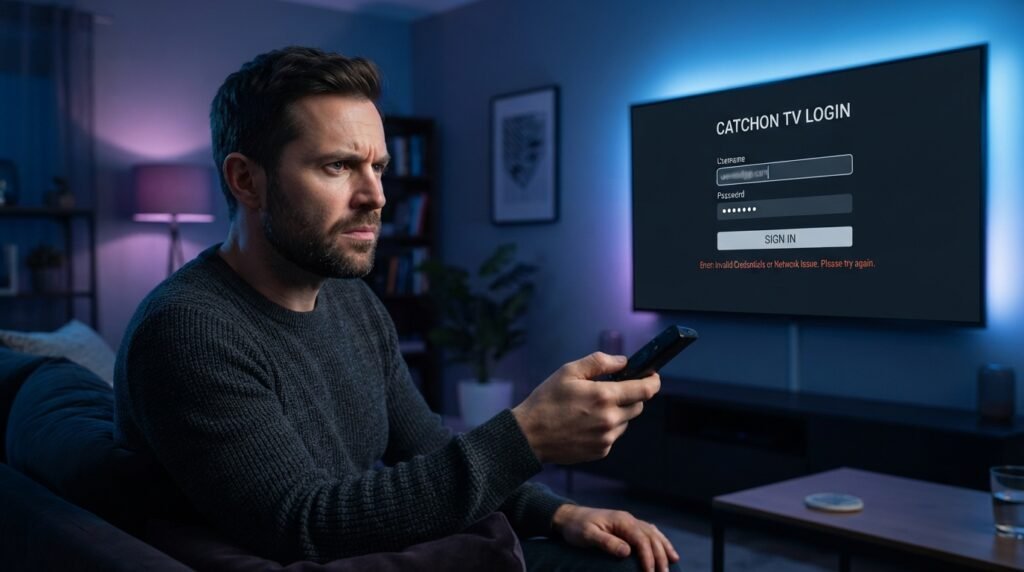
Searching for catchon tv login usually means you already have a subscription or trial and now need to get back into the app, connect a new device, or fix an account that suddenly refuses to open. The confusing part is that CatchON TV does not necessarily use one universal browser login page for every type of device. Depending on how your subscription was configured, your access may happen directly inside the streaming app using credentials supplied after activation rather than through a traditional website account dashboard.
For the service covered in this guide, start from the current CatchON TV official website and the setup information supplied with your own account. The website currently describes activation as providing customers with login information after the order is confirmed, but it does not publicly present one universal username and password that works for everyone. Your catchon tv login details should therefore come from your own subscription information. This guide explains where those credentials normally belong, how login differs across Firestick and Android-style devices, what to do when access suddenly fails, and how to avoid mixing your subscription login with activation codes, parental PINs, or device accounts.
How the CatchON TV Login Process Works
A catchon tv login is the step that connects your streaming application with an active subscription. Depending on the app supplied or recommended with your account, the screen may ask for a username and password, a subscription code, prepay information, or another account-specific value. You should use the terminology shown in the setup instructions you received rather than assuming every CatchON installation uses exactly the same authentication method.
This is different from logging into the CatchON TV website itself. You may visit the website to compare plans, review the channel catalog, or check current information, while the actual streaming authorization happens inside the app installed on your Firestick, Android TV, Smart TV, or another compatible device. If you search for catchon tv login expecting a conventional Netflix-style browser dashboard, you may be looking for something your specific setup does not require.
The safest rule is simple: begin with the account information sent after your subscription or trial was activated, identify the exact app connected with that account, and enter each value only into the field it was designed for.
Where to Find Your CatchON TV Login Details
Your own purchase or activation information should be the first place you look when you cannot remember your catchon tv login. Search the email address used when ordering and review the confirmation, activation, setup, or welcome messages associated with the subscription. Check spam or junk folders as well, particularly if the service was activated recently and you expected credentials that never appeared in the main inbox.
Do not replace missing account information with credentials copied from Reddit, YouTube comments, or old tutorials. CatchON TV access information is tied to individual subscriptions or setup methods, so another person’s username or activation code is not a substitute for your own account.
Check Your Original Confirmation Email
Look for the message received when the subscription became active. Depending on the setup, it may contain account credentials, app instructions, activation information, or the steps required to connect your device.
Save this message somewhere easy to find. Reinstalling the app months later becomes much simpler when you do not have to reconstruct the original catchon tv login process from memory.
Verify the Email Used for Purchase
If you use several email addresses, make sure you are searching the one entered during checkout. This sounds obvious, but it can become confusing when payment is made through one service while account information is delivered to a separate email address entered on the order. Also search for “CatchON,” “activation,” “subscription,” and “login” rather than relying only on the exact email subject you remember.
Keep Login and Payment Records Together
Save the subscription length, purchase date, connection count, login information, and payment confirmation in one secure place. You do not need a complicated system; a password manager or secure account note is enough.
This makes later catchon tv login troubleshooting much easier because you can verify both the credentials and whether the subscription should still be active.
What Information the Login Screen May Request
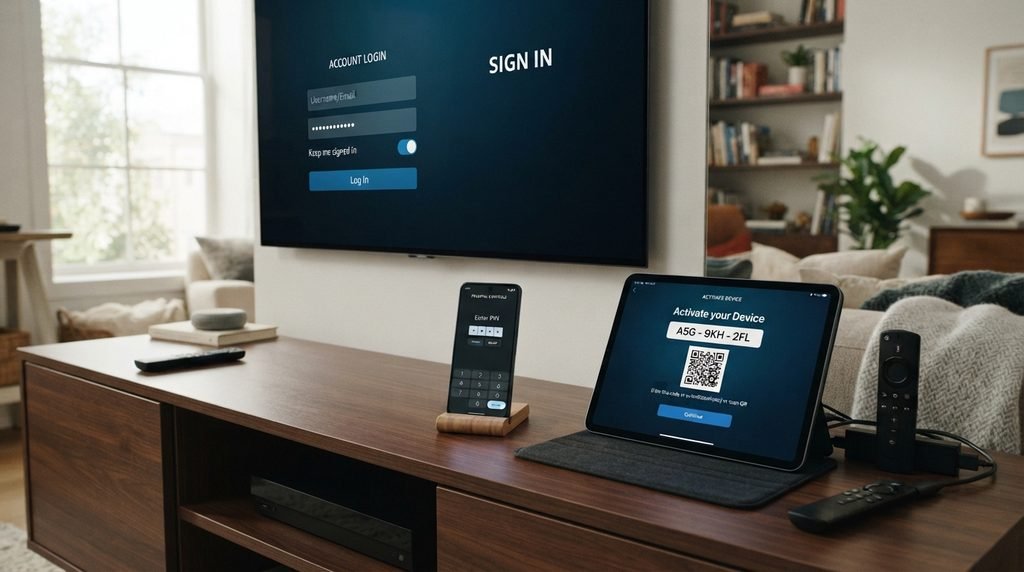
Not every CatchON-related application presents the same fields, which is why users sometimes enter correct information into the wrong place. A screen asking for a parental PIN is not the same as an account login, and a Fire TV registration code belongs to Amazon rather than CatchON TV. Identifying the prompt before entering anything can save a lot of unnecessary troubleshooting.
Use this quick comparison:
Screen or field
What it usually relates to
Username + password
Subscription authentication
Activation code
Device/account authorization
Prepay code
Specific activation workflow
Four-digit PIN
Parental or protected settings
Amazon registration code
Fire TV device account
Google sign-in
Android/Google TV device account
Too many connections
Subscription screen limit
Expired subscription
Plan status rather than password
If your catchon tv login instructions provide a username and password while the app asks for something completely different, verify that you installed the correct application before trying random combinations.
Using CatchON TV Login on Different Devices
CatchON TV currently promotes compatibility with Firestick, Android devices, Smart TVs, computers, and several other platforms. The subscription may remain the same across compatible hardware, but the way you reach the catchon tv login screen and manage application data can differ significantly between devices.
CatchON TV Login on Firestick
On Firestick, make sure the Fire TV device itself is already registered, connected to Wi-Fi, and functioning normally before troubleshooting CatchON TV. Amazon account registration and CatchON TV subscription authentication are separate processes, so an Amazon sign-in problem should be solved before you start changing CatchON credentials.
Open the app associated with your subscription and enter the details supplied when your account was activated. Remote controls make typing errors easy, so inspect letters, numbers, capitalization, and spaces carefully before submitting.
CatchON TV Login on Android TV
Android TV and Google TV devices can have both a Google account and separate application accounts. Your Google account allows the television to use Google services and install compatible apps, while the catchon tv login belongs to the streaming subscription itself.
If CatchON TV previously worked and suddenly stops authenticating, verify the app and subscription before removing the Google account from the television. Google’s Google TV troubleshooting guide recommends checking network connectivity, restarting the device, checking the active profile, and clearing app data only when needed.
CatchON TV Login on Smart TVs
Smart TVs use several operating systems, so setup can vary between Android TV, Google TV, Fire TV televisions, Samsung models, LG televisions, and other platforms. Some may use a compatible app directly while others work through an external streaming device.
Do not assume login instructions written for Firestick will match a Samsung or LG television. Follow the app and setup method associated with your particular device.
How to Fix CatchON TV Login Problems
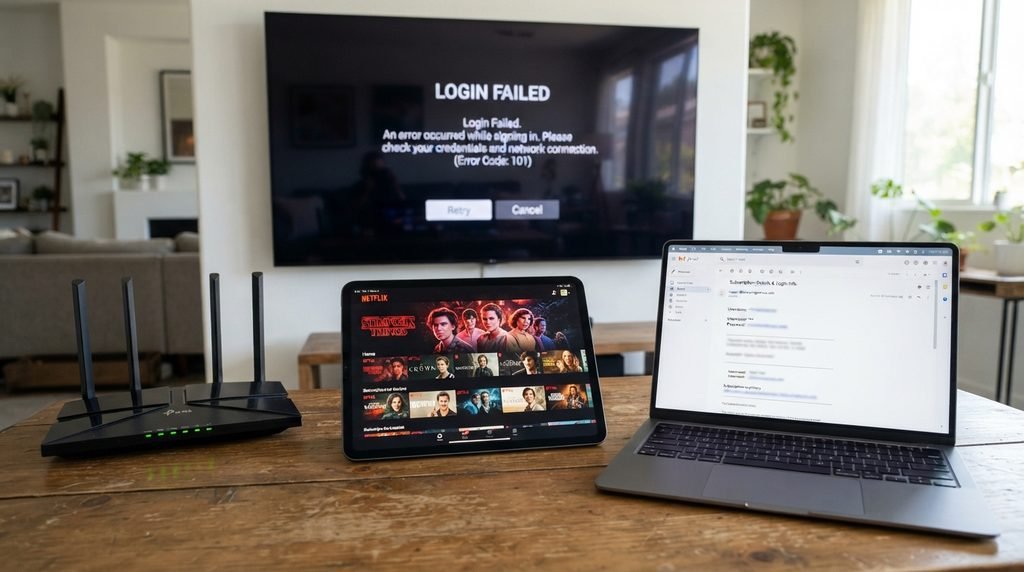
A failed catchon tv login can come from something as simple as one mistyped character or something more complicated such as an expired subscription or corrupted application data. The fastest troubleshooting process starts with the lowest-risk checks and changes only one thing at a time.
Recheck Every Login Character Carefully
Return to the original account information instead of entering the password from memory. Pay attention to uppercase letters, lowercase letters, numbers, hyphens, periods, and accidental spaces. Television keyboards are particularly easy to mistype. One incorrect character can make valid credentials appear completely unusable.
Restart the App and Streaming Device
Close CatchON TV completely and reopen it. If the catchon tv login still fails, restart the Firestick, Android TV, Smart TV, or streaming box rather than leaving it in standby. A restart clears temporary state without deleting your account configuration, making it a safer early troubleshooting step than uninstalling the app.
Confirm Your Subscription Is Active
If your login worked normally for weeks or months and suddenly stopped, check the subscription period before changing passwords or reinstalling anything. An installed application can remain on the device after the paid plan expires. You can review current plans on the CatchON TV pricing page, but verify the existing account first so you do not accidentally purchase a second subscription unnecessarily.
CatchON TV Login vs Other Access Codes
One of the biggest causes of CatchON TV confusion is the number of different codes and passwords that can appear during setup. A user may have a Fire TV account, Google account, CatchON credentials, parental PIN, and activation information all associated with the same television. They serve different purposes even though they may appear within minutes of each other during installation.
A good catchon tv login troubleshooting process begins by identifying which credential the screen actually expects.
Credential
Primary purpose
Use for normal CatchON login?
CatchON username/password
Subscription authentication
Yes, when requested
Activation information
Initial authorization
Only when requested
Prepay code
Specific account setup
Only in prepay field
Parental PIN
Protect settings/content
No
Amazon password/code
Fire TV account
No
Google account
Android/Google TV
No
Wi-Fi password
Network connection
No
Entering the wrong type of information repeatedly can make the problem appear more complicated than it really is.
Protecting Your CatchON TV Account Information
Login problems often send people toward Reddit, Telegram groups, forums, or random support pages where someone offers to “fix” the account. Be cautious about sharing credentials in those environments. A legitimate troubleshooting conversation usually does not require you to post your complete username and password publicly.
Keep catchon tv login information separate from highly sensitive credentials such as banking passwords. If you store it digitally, use a secure password manager or another protected method rather than an unprotected public note.
Useful account-safety habits include:
Keep the original login message.
Do not publish credentials in screenshots.
Avoid sending passwords to strangers in forums.
Verify the website before entering payment details.
Do not install unknown apps claiming to bypass login.
Keep payment confirmation separate from login credentials.
Verify unfamiliar support messages before responding.
Change exposed credentials when an official reset option exists.
These basic habits are more useful than searching for shared catchon tv login accounts online.
Checking Your Account After Login Succeeds
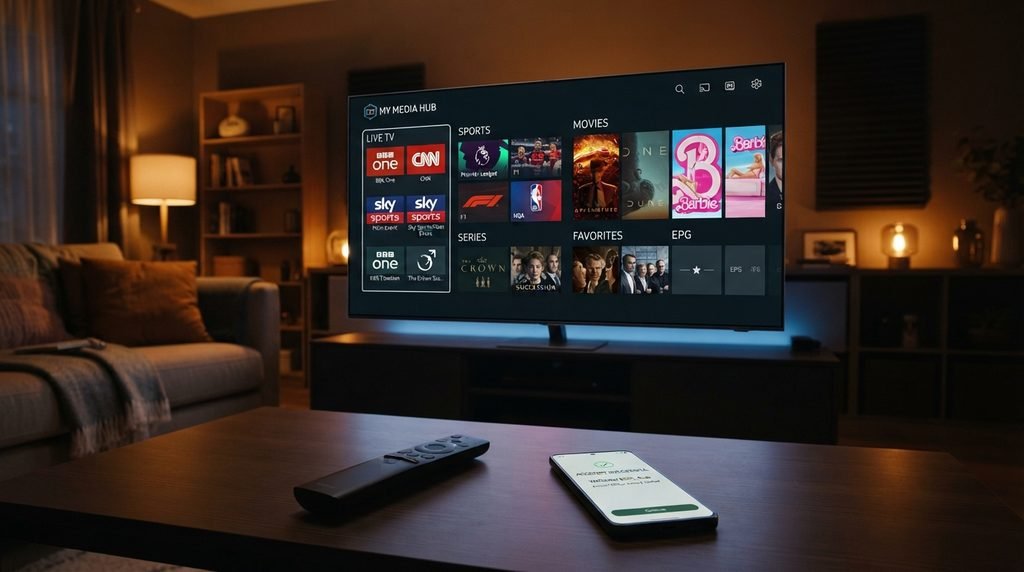
A successful login screen is only the beginning of testing the service. Once CatchON TV opens, check whether the account has loaded the content and features expected from your subscription. This helps reveal whether authentication completed properly and whether any remaining issue is actually related to channels, EPG, or the device.
Start with several different channel categories rather than testing one stream repeatedly. The current CatchON TV channel list can help you identify important networks to check.
After logging in, verify:
Several live-TV categories load
Your important channels open
VOD content appears
EPG information loads
Search works correctly
Favorites can be created
Remote navigation feels responsive
Picture quality is acceptable
A second stream works if your plan includes multiple connections
If the catchon tv login succeeds but only one channel fails, you no longer have a login problem. Troubleshoot that stream rather than rebuilding the account.
When Login Problems Are Really Connection Limits
Some users mistake a simultaneous-connection limit for a login failure. CatchON TV currently allows customers to choose different numbers of simultaneous connections through its pricing system. If more screens attempt to watch than the subscription permits, the behavior may differ from a normal incorrect-password error.
Think about every device currently using the subscription before resetting credentials. Someone in another room may already be streaming, an app may remain active on another television, or the plan may simply include fewer simultaneous connections than the household now needs.
A simple household check can help:
Household usage
Connection plan to consider
One active viewer
1 connection
Couple watching separately
2 connections
Three independent viewers
3 connections
Larger family
4–5 connections
Several installed devices but one watching
1 may still be sufficient
The number of installed devices is not necessarily the same as the number of simultaneous streams you need.
When to Reinstall the CatchON TV App
Reinstallation can fix damaged application files, but it should not be the first catchon tv login fix. If the credentials are wrong or the subscription expired, reinstalling the exact same app will not change the account authorization.
Try restarting, verifying credentials, checking the subscription, and testing another device first. If the account works elsewhere but the original app continues failing even after a restart and appropriate cache troubleshooting, reinstalling becomes more reasonable.
Before uninstalling:
Save your login credentials
Confirm the correct current app
Note any Favorites that may disappear
Check that you can reinstall the app
Keep activation information available
Avoid replacing it with an unrelated APK
The purpose of reinstalling is to repair the application, not to create a new account.
CatchON TV Login Frequently Asked Questions
Where is the CatchON TV login page?
The current CatchON TV website does not publicly present one universal browser login page that every subscriber must use. Streaming access may instead happen directly through the app using credentials supplied with your subscription. Start from the CatchON TV official website and the setup information associated with your own account rather than trusting an unrelated login page found through search.
What are my CatchON TV login credentials?
Your catchon tv login information should come from the subscription or activation details supplied for your account. Search the email used during purchase and check spam or junk folders if necessary.
Why is my CatchON TV login not working?
Common causes include mistyped credentials, an expired subscription, incorrect app installation, temporary application data problems, or account authentication trouble. Test the simple causes first before uninstalling anything.
Is CatchON TV login the same as an activation code?
Not necessarily. Login credentials normally authenticate an existing subscription, while an activation code may be used during initial device or app authorization.
Is my CatchON TV PIN my login password?
No. A parental-control PIN is intended to protect restricted settings or content and does not normally replace your subscription credentials. If the app opens correctly and only a protected menu requests four digits, you likely have a PIN issue rather than a catchon tv login issue.
Can I use the same CatchON login on another device?
That depends on the subscription configuration and simultaneous connection allowance. The current pricing system offers multiple connection options, so verify the plan before using several screens at once.
Final Thoughts on CatchON TV Login Problems
The catchon tv login process becomes much easier once you separate your streaming subscription credentials from all the other accounts and codes that can appear on a modern television. Amazon registration, Google TV profiles, Wi-Fi passwords, parental PINs, activation codes, prepay information, and CatchON credentials may all exist on the same device, but they are not interchangeable.
Start with the original information associated with your subscription, enter it carefully into the correct app, and verify that the plan should still be active. If access fails, restart the application and device, test another compatible screen, and only move toward cache clearing or reinstallation when the evidence points toward a device-specific problem.
Once the catchon tv login succeeds, use the CatchON TV channel list to verify important streams and confirm that VOD, EPG, search, and Favorites load normally. A structured troubleshooting process is much faster than repeatedly entering random codes or buying another subscription because one login attempt failed.