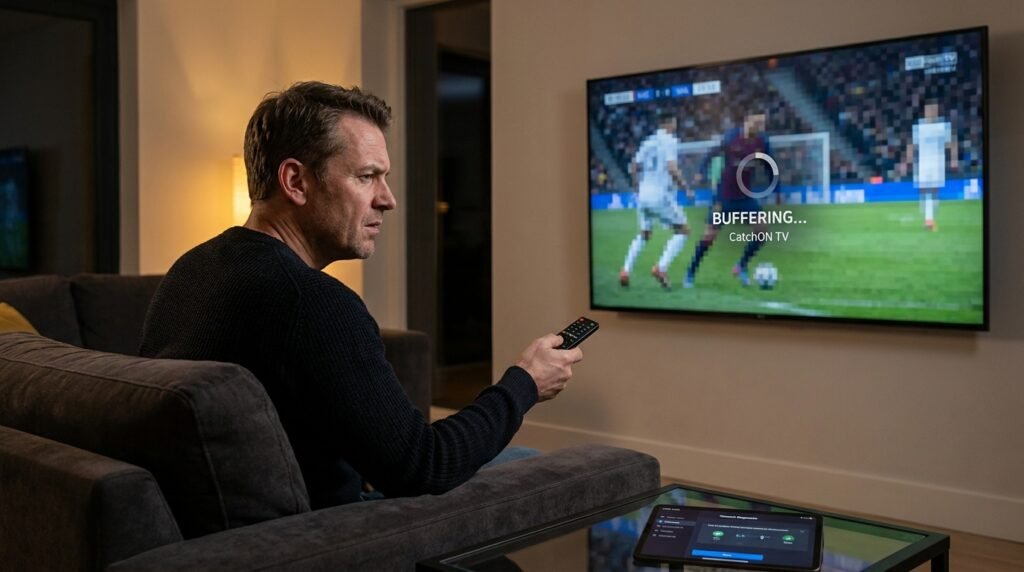
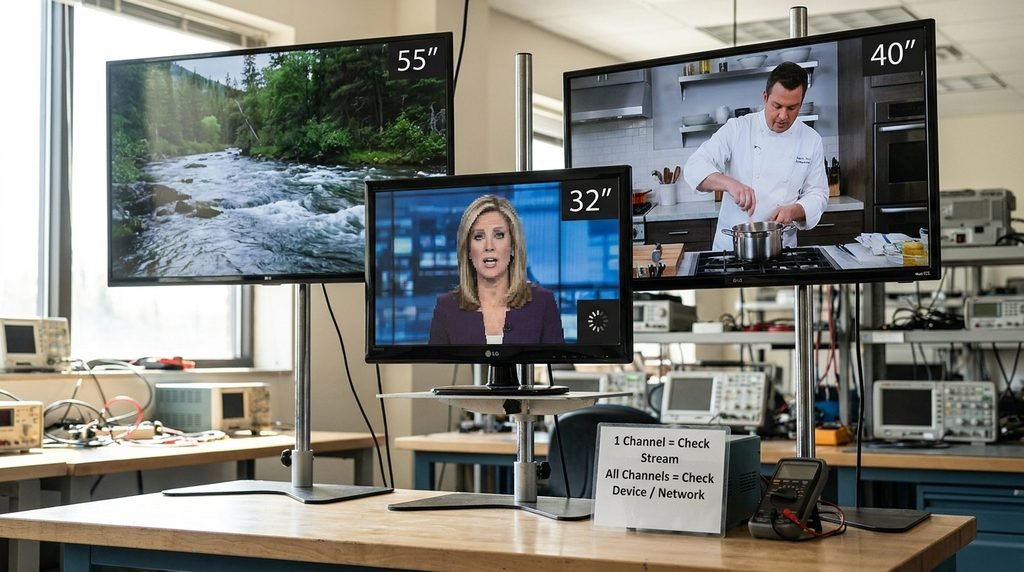
If CatchON TV is buffering, first determine whether the problem affects one channel or everything. One-channel buffering can point to the stream itself, while problems across every channel are more likely to involve your device, Wi-Fi, app, or the service.
There is also an important 2026 update: the original Channelmoa/CatchON service now states that it has been permanently discontinued. If you are trying to use that original service today, endless loading or playback failure may not be a buffering problem that your router can fix.
Last updated: September 19, 2026
Research method: This guide combines official Fire TV troubleshooting guidance, archived Channelmoa support discussions, and real CatchON user reports. Community experiences are treated as reports rather than universal facts.
Why Does CatchON TV Keep Buffering?
CatchON TV buffering historically had several possible causes: unstable Wi-Fi, device performance, app problems, an overloaded individual stream, or issues on the provider’s side. That distinction matters because restarting your router will not solve every type of buffering.
Recent CatchON and Moa community discussions showed users experiencing different patterns. Some reported only certain live channels freezing, while others experienced problems across multiple devices and connections. Channelmoa community support also acknowledged buffering and freezing issues during the Moa TV transition.
Before changing anything, use this simple test:
What You See
Most Likely Area to Check First
One channel buffers
Channel or stream
Several channels buffer
App, service, or connection
Every streaming app buffers
Home network
Only CatchON buffers
CatchON app or service
Buffering on one device only
Device or Wi-Fi connection
Same problem on different networks
App or service side
App never gets past loading
Authentication/server issue
This table is more useful than immediately reinstalling the entire application.
Key Takeaway: The first step is identifying whether the problem follows the channel, device, network, or service.
Is CatchON TV Buffering or Actually Down?
This is now the most important question. If you are attempting to use the original CatchON/Channelmoa service, its current website says the service is no longer available and has been permanently discontinued. The notice also says the service cannot be restored.
In that situation, symptoms may look like:
Endless loading dots
Channels that never start
Failed playback
Login or authentication errors
App opening but content not loading
Activation codes no longer working
Those symptoms can look exactly like severe buffering even though your internet connection is working normally. An old CatchON application may still remain installed on your Firestick or Android device. The local app existing does not mean the remote servers it depended on are still operational. For broader information about the service, visit the CatchON TV homepage.
Key Takeaway: If you are using the discontinued original service, troubleshooting your Wi-Fi may not restore playback.
Check Whether One Channel or Everything Buffers
This is the fastest useful test. Open several unrelated channels rather than repeatedly reopening the same one. Try a live news channel, entertainment channel, and another category.
Only One Channel Is Buffering
If one channel freezes while several others play normally, your internet connection is probably not the first suspect. The problem may involve that individual stream.
Past CatchON users described exactly this behavior. In a February 2026 discussion, one user reported freezing and buffering on only selected channels rather than across the entire service.
In that case:
Change to another channel.
Wait a few minutes.
Return to the problem channel.
Compare it with another stream carrying similar content if available.
Do not reset your entire Firestick because one channel struggles.
Every Channel Is Buffering
If everything buffers, continue testing. Open another streaming application such as YouTube or another legitimate service you already use. If those apps also buffer, investigate your network or device. If everything else works perfectly and CatchON alone fails, the evidence points more strongly toward the CatchON application, account, or service.
Key Takeaway: One bad channel and an entire failing application are two different troubleshooting problems.
Restart the App Before Restarting Everything
A full reinstall should not be your first move. Start by completely closing the application and reopening it. If your device allows it, force-stop the app and clear its temporary cache.
Archived Channelmoa support discussions specifically recommended force-stopping the app and clearing its cache when users encountered repeated loading dots. Support representatives said some users experienced the problem randomly across different devices.
A sensible order is:
Exit CatchON TV.
Force-stop the application.
Clear temporary cache only.
Reopen it.
Test multiple channels.
Be careful with options labeled Clear Data or Clear Storage. Those can remove application settings, favorites, or login information depending on the app. Clearing the cache is much less disruptive.
Key Takeaway: Try a clean app restart before deleting settings or reinstalling the entire application.
Restart Your Firestick or Android Device
If restarting the app changes nothing, restart the streaming device. Do a proper restart rather than simply switching the television off while leaving the streaming stick powered. Device restarts can clear temporary processes, memory problems, and apps running in the background.
This is especially useful if CatchON starts normally after rebooting but gradually becomes slower again. However, if the exact same channels buffer immediately after every restart, the problem probably lies somewhere else.
Test Your Internet Where the TV Actually Is
A fast internet plan does not automatically mean your Firestick receives a stable connection. Your broadband company might advertise hundreds of megabits per second while the streaming device receives a weak or unstable Wi-Fi signal behind the television.
Amazon’s Fire TV troubleshooting documentation recommends checking network status, using the device’s diagnostics when available, restarting the Fire TV, and restarting the modem or router when video buffers. Run the test from the streaming device itself if possible.
Look Beyond the Speed Number
Buffering can happen even when a speed test shows a high number. Streaming also depends on connection stability. Wi-Fi interference, packet loss, congestion, distance from the router, and frequent connection changes can interrupt playback.
One CatchON community user reported substantial improvement after changing the way their router handled Wi-Fi bands, although that is an individual experience rather than proof that the same fix will work for everyone. The useful lesson is simpler: test the actual connection reaching the streaming device.
Key Takeaway: Your advertised internet speed and your TV’s real Wi-Fi connection are not necessarily the same thing.
Restart Your Modem and Router Properly
If other apps are also struggling, restart your network.
A simple process is:
Turn off or unplug the modem and router.
Wait briefly.
Restore power to the modem.
Allow it to reconnect.
Restore the router if it is separate.
Reconnect your streaming device.
Test again.
Amazon includes restarting the modem and router among its Fire TV Wi-Fi troubleshooting steps. Do not repeatedly reset the router to factory settings. A normal reboot and a factory reset are very different actions.
Wi-Fi vs Ethernet for CatchON TV Buffering
A wired Ethernet connection can remove Wi-Fi interference from the equation, but Ethernet is not a magic fix for server-side buffering. This is an important distinction.If CatchON buffers because the streaming device has an unstable wireless connection, Ethernet may improve playback substantially. If a particular CatchON stream or remote server is failing, connecting an Ethernet cable will not repair that source.
Use Ethernet as a diagnostic test:
Wi-Fi buffers → Ethernet works normally: your wireless connection deserves attention.
Wi-Fi buffers → Ethernet also buffers: look beyond Wi-Fi.
That is much more useful than assuming every IPTV buffering problem is caused by internet speed.
Does a VPN Fix CatchON TV Buffering?
Not automatically.
Past CatchON discussions contain conflicting experiences. Some users reported trying another VPN location, while others said they had better results without a VPN. That disagreement is exactly why “install a VPN” should not be treated as a universal buffering fix. A VPN changes the route between your device and the destination server. Depending on the network, that route could become better, worse, or simply slower.
If you already use a VPN, test both conditions:
Test A: playback with your normal VPN connection.
Test B: playback without it, where lawful and appropriate.
Change only one variable at a time. Otherwise, you will not know what actually affected playback. Do not buy a VPN solely because someone claims every CatchON buffering issue requires one.
Key Takeaway: A VPN is a diagnostic variable, not a guaranteed buffering cure.
Why Sports Channels Can Buffer More Often
Live sports put different demands on a streaming system than prerecorded movies or series. The stream has to be delivered live, and popular events can attract many viewers at the same time.
Historical CatchON community threads frequently mentioned buffering around popular sports channels and events. For example, users reported issues around ESPN, RedZone, football, and other high-demand live broadcasts.
That does not prove server congestion is responsible every time a football game freezes. But it provides an important diagnostic clue.
If:
regular channels work,
movies work,
your connection is stable,
and only a heavily watched live event buffers,
then repeatedly resetting your router is unlikely to be the best first response. You can review the types of content historically associated with the platform on our CatchON TV channel list.
Key Takeaway: Buffering limited to a high-demand live event can indicate a stream-side problem rather than a whole-home internet problem.
Should You Clear the CatchON TV Cache?
Clearing temporary cache can be reasonable when an application becomes unstable. A cache stores temporary information intended to make an app work more efficiently. Occasionally, cached data can become problematic.
Try cache clearing when:
Menus become sluggish.
Loading dots appear repeatedly.
The app behaves strangely after an update.
Playback works after restarting but fails again.
Other apps on the same device work normally.
Again, distinguish Clear Cache from Clear Data. Clear Data may effectively reset the application. If you do not know your login or activation information, do not erase application data casually.
Should You Reinstall CatchON TV?
Reinstallation belongs near the end of the troubleshooting process, not the beginning. Before reinstalling, you should already have tested:
Multiple channels
Another streaming app
Device restart
App restart
Cache clearing
Network connection
Router restart
A reinstall makes sense when the app itself appears corrupted or when a verified provider specifically instructs you to install a current version. But there is a major warning in 2026.
The original Channelmoa/CatchON service says it is permanently discontinued and warns users that other sites using the Catchon or Channelmoa names are not affiliated with it. Do not search randomly for a “new CatchON APK” and enter old credentials just because your original application stopped playing. If you are considering downloading another APK, verify the source independently first.
Key Takeaway: Reinstalling is useful for a damaged app; it cannot revive a discontinued backend service.
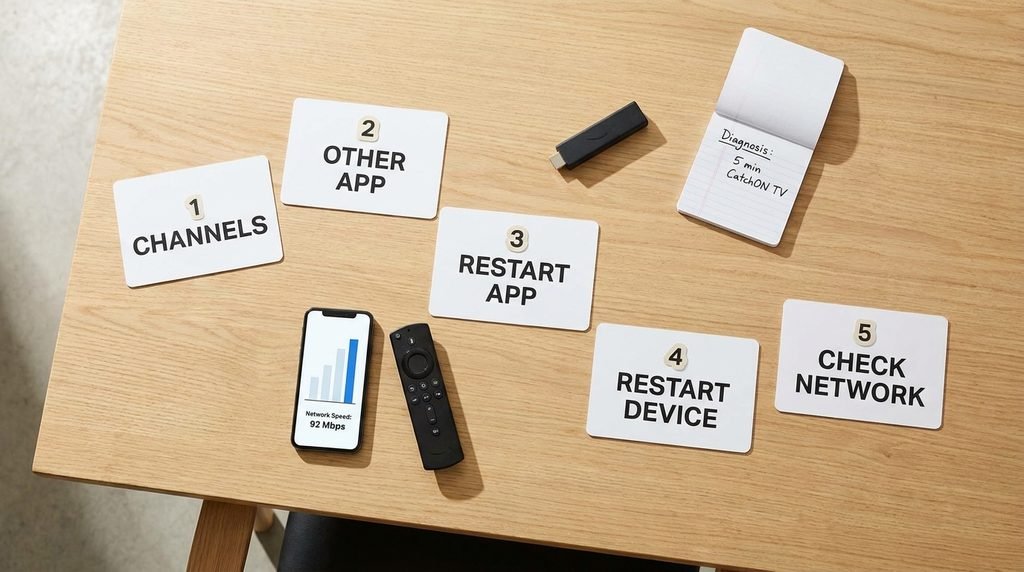
The 5-Minute CatchON Buffering Test
Here is the troubleshooting sequence I would use before spending an hour changing settings.
Minute
Test
What the Result Tells You
0–1
Try three different channels
One stream vs broad problem
1–2
Open another streaming app
CatchON-specific vs network-wide
2–3
Force-stop CatchON and reopen
Temporary app problem
3–4
Restart the streaming device
Device/session problem
4–5
Check network status or speed
Local connection problem
After those five checks:
Only CatchON fails: suspect the app, account, or service.
Every streaming app fails: investigate your network.
One CatchON channel fails: suspect that particular stream.
Same CatchON failure on multiple devices/networks: service-side failure becomes much more plausible.
Original CatchON/Channelmoa account no longer loads in 2026: remember that the original service has announced permanent discontinuation.
This decision tree avoids randomly changing settings without learning anything.
When Should You Stop Troubleshooting?
Stop changing your home network when the evidence no longer points to your home network. For example, imagine YouTube plays perfectly, another streaming service works normally, your speed test is stable, three devices show the same CatchON failure, and the same problem happens on another connection.
At that point, rebooting the router for the fifth time adds very little information. Historical Channelmoa support discussions acknowledged cases where users experienced loading and freezing across devices while developers investigated the app itself. And for the discontinued original service, the current service notice changes the diagnosis entirely. If you need information specifically related to our CatchOnTVUSA site, use the contact page.
Do Not Pay Someone to “Fix” Your Old Account
Be especially careful if buffering or failed playback leads you to a website that asks you to purchase another activation code. The current Channelmoa notice explicitly warns users not to provide personal information, payment information, passwords, or credentials to websites claiming to be associated with the discontinued service.
If you are comparing historical plan information, you can review our CatchON TV pricing page. But buffering by itself is not evidence that you need to purchase another subscription.
Key Takeaway: Diagnose the problem before spending more money.
CatchON TV Buffering FAQ
Why Does CatchON TV Keep Buffering?
CatchON TV buffering can come from an unstable local connection, device or app problems, an individual stream, or the service itself. Test several channels and another streaming app before deciding your internet is responsible.
How Do I Stop CatchON TV From Freezing?
Start by force-stopping the app, clearing temporary cache, restarting the device, and checking the device’s network connection. If only one channel freezes while everything else works, the problem may be that individual stream.
Does Faster Internet Stop CatchON TV Buffering?
Not always. Higher bandwidth helps only when bandwidth is the bottleneck. Wi-Fi instability, app bugs, individual stream problems, and service-side failures can continue even on a fast connection.
Does a VPN Fix CatchON TV Buffering?
There is no universal answer. Historical users reported mixed results with VPNs, so test playback with and without your existing VPN rather than assuming one is required.
Is CatchON TV Buffering Because the Service Is Down?
For users of the original CatchON/Channelmoa service, the current situation is more serious than a temporary outage. Channelmoa says the service has been permanently discontinued and cannot be restored.
What Should You Do Next?
For a normal buffering problem, use this order: Test several channels → test another app → restart CatchON → check the device connection → restart the device/router → determine whether the failure follows your network or CatchON.
Do not immediately reinstall applications, erase your settings, buy a VPN, upgrade your internet plan, or purchase another subscription. And if you are troubleshooting the original CatchON/Channelmoa service in September 2026, keep the current shutdown notice in mind: what looks like extreme buffering may simply be a service that is no longer operating.
This article is informational. Streaming-service availability, applications, account systems, and provider ownership can change. Only use services and content you are legally authorized to access.