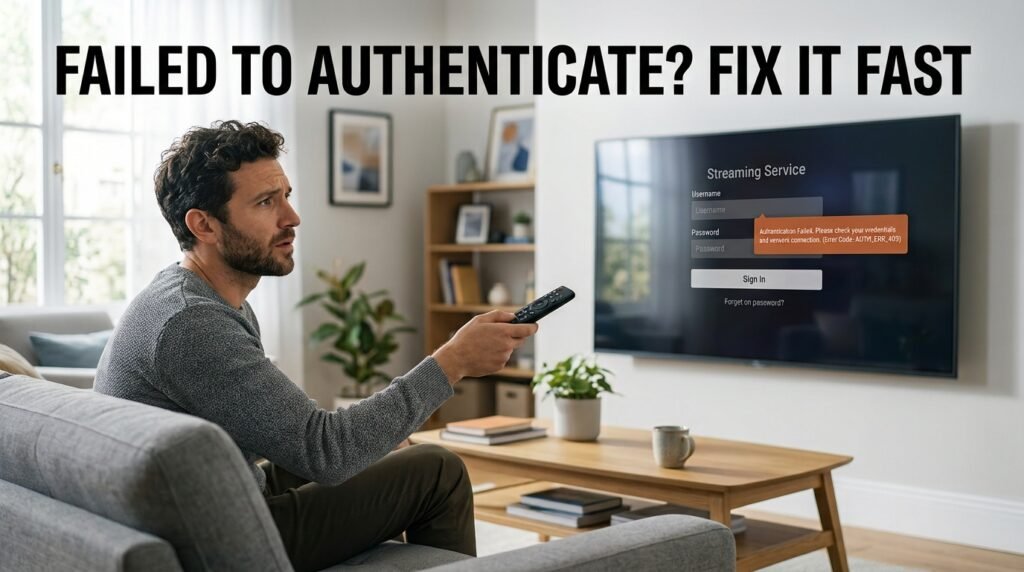
The CatchON TV failed to authenticate message means the app could not successfully verify your device, account, or access with the remote service. Before changing passwords or reinstalling anything, test another app, restart CatchON, check your connection, confirm your device’s date and time, and clear the app cache.
There is also a major 2026 issue to know about: the former Channelmoa/CatchON service currently says it has been permanently discontinued and cannot be restored. If you are trying to authenticate with that original service, local troubleshooting may no longer solve the error.
Last updated: September 20, 2026
Research method: This guide compares real CatchON user reports with official Android TV troubleshooting documentation and the current Channelmoa/CatchON service notice. Community reports are treated as user experiences rather than universal facts.
Table of Contents
What Does CatchON TV Failed to Authenticate Mean?
The CatchON TV failed to authenticate error appears when the application cannot complete the process used to verify access. That does not automatically mean your subscription has expired.
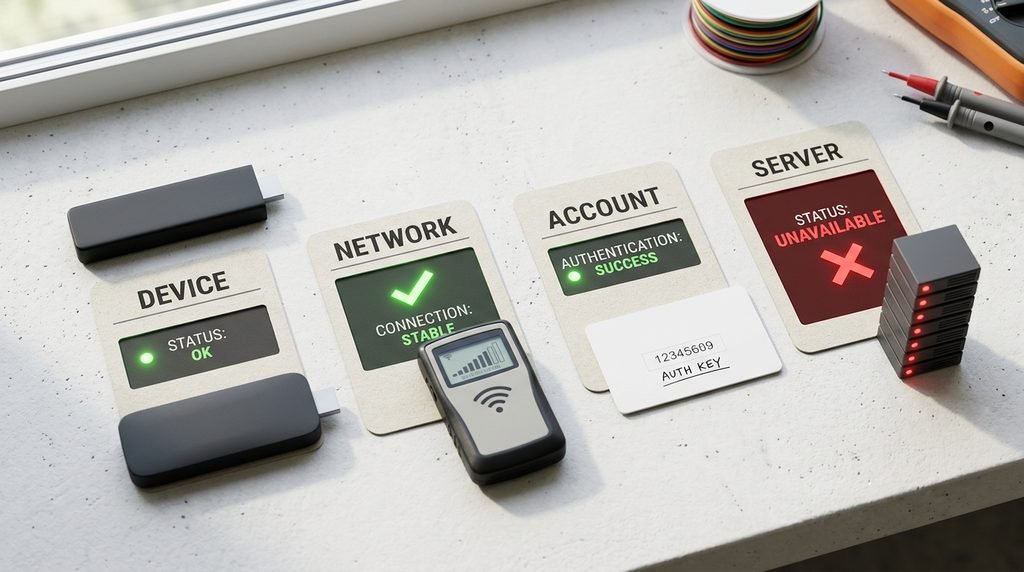
Authentication can fail at several points:
Your device cannot reach the authentication server.
The app has temporary corrupted data.
Your internet connection dropped during authentication.
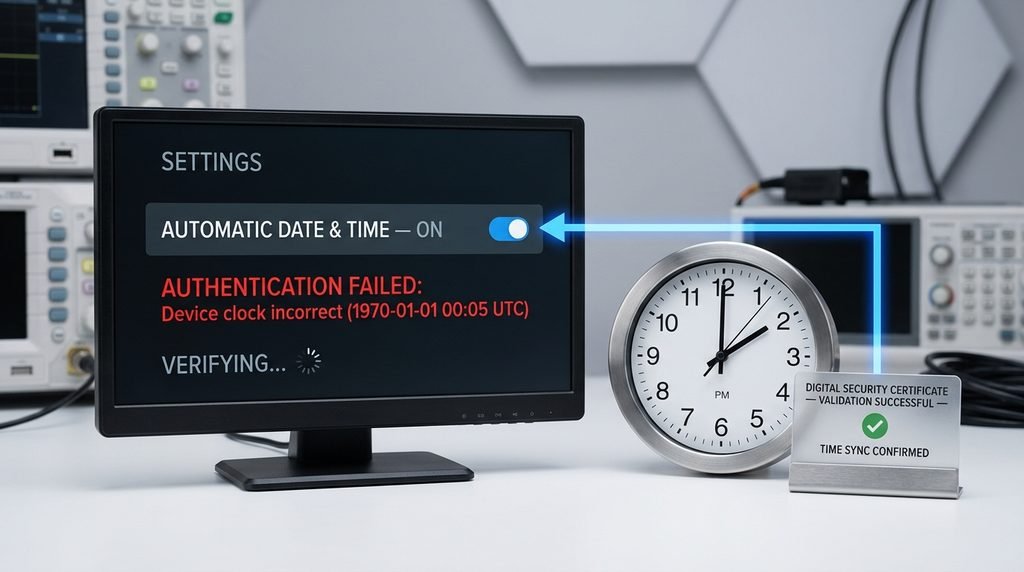
Your device clock is incorrect.
Your code or account is no longer accepted.
The authentication server itself is unavailable.
The service behind the app is no longer operating.
The important part is determining where the failure occurs before changing settings randomly.
A real CatchON community discussion from April 2025 provides a useful example. Multiple users reported the authentication error at roughly the same time while YouTube, Hulu, Max, Paramount+ and other services continued working normally. That pattern pointed much more strongly toward a CatchON-side outage than several users’ home networks failing simultaneously.
Key Takeaway: Authentication failure can come from your device, account, network, or the service itself.
Is CatchON TV Authentication Down?
Before troubleshooting your Firestick for an hour, test whether the problem appears to be local.
Use this quick comparison:
Test
What It Suggests
CatchON fails but YouTube works
CatchON app/service more likely
Every streaming app fails
Network/device more likely
CatchON fails on several devices
Account/service more likely
CatchON works on another network
Your connection may be involved
Many users get the same error
Service-side issue becomes more likely
Old CatchON account suddenly stops authenticating
Account/server status needs checking
This method is especially useful because the exact error has previously appeared during what users described as a broader CatchON outage If your other streaming apps work immediately while CatchON alone displays the error, avoid assuming your internet speed is automatically the problem.
If you are attempting to use the original CatchON service, this changes the troubleshooting process completely. Channelmoa currently displays an official service notice stating that “Channelmoa / Catchon is no longer available.” It says the service has been permanently discontinued and cannot be restored.
The notice also warns that other websites, services, or people using names such as Catchon or Channelmoa are not affiliated with the former service. Users are specifically warned not to provide passwords, credentials, personal information, or payment details to websites claiming an association.
Therefore, if an old CatchON installation suddenly shows:
Failed to authenticate
Invalid code
Unable to load app data
Network connection error
Login failure
Endless loading
the problem may no longer be something you can fix from the television.
Key Takeaway: For the discontinued original CatchON/Channelmoa service, authentication failure may simply reflect unavailable backend servers.
Check Another Streaming App
Start with the easiest diagnostic test. Open YouTube or another legitimate streaming application already installed on the same device. Play something for a minute. If that app also fails, investigate your device or internet connection. If the other app works perfectly but CatchON immediately displays failed to authenticate, the problem becomes more specific to CatchON.
This is exactly why the April 2025 outage reports were useful: users reported other streaming services working while CatchON authentication failed. Do not restart your entire home network until you know the network is actually involved.
Force Stop and Reopen CatchON TV
Applications sometimes get stuck in a bad session. Completely exit CatchON rather than simply returning to the home screen. On Android TV, the exact menu varies, but you can usually go to:
Settings → Apps → CatchON TV → Force Stop
Then reopen the app. Google’s Android TV troubleshooting guidance recommends restarting problematic apps and devices when playback applications stop functioning normally. (Google Help) If authentication works immediately afterward, the problem was probably temporary. If the same error returns instantly, continue testing.
Clear the CatchON TV Cache
Clearing temporary cache data can help when the app itself is malfunctioning.
Clearing the cache removes temporary files. Clearing app data can erase stored settings and may require you to enter your account or activation information again. Google’s official Android TV support documentation includes clearing app cache/data among its troubleshooting steps for applications that are not working correctly. Start with cache only.
Key Takeaway: Clear the least destructive data first.
Check the Device Date and Time
Authentication systems often depend on accurate device time because secure connections and account tokens can be time-sensitive. Google’s Android troubleshooting guidance includes resynchronizing a device’s Automatic Date & Time and Automatic Time Zone when applications fail to communicate correctly.
Check:
Settings → System → Date & Time
Then enable:
Automatic date and time
Automatic time zone
The exact menu depends on the television, Fire TV, Android box, or Android version. After correcting the clock, restart the app. Do not assume this is the cause every time. It is simply a low-risk check worth doing before reinstalling everything.
Restart the Streaming Device
Restart the Firestick, Android TV, Google TV, or streaming box itself. A proper restart clears temporary memory and closes processes that may survive simply switching your television off. Google officially recommends restarting Android TV devices when apps cannot play content correctly.
After rebooting:
Wait for the device to reconnect to Wi-Fi.
Open another app.
Confirm internet access.
Open CatchON.
Check whether authentication succeeds.
If nothing changes, move on instead of repeatedly restarting.
Restart Your Internet Connection
If several apps are failing, your network deserves more attention. Restart your modem and router normally. Do not factory-reset them.
Amazon’s Fire TV guidance recommends restarting the Fire TV, modem, and router when applications have connection problems, along with checking Wi-Fi and clearing app cache where appropriate. (Amazon DigPRJ Survey) After the network reconnects, test another service first. If every other app immediately works but CatchON still refuses to authenticate, that result itself is useful evidence.
Test Without Your VPN
If you already use a VPN, temporarily test CatchON without it where appropriate. A VPN changes the route between your device and the authentication server. A poor VPN route or corrupted VPN app state can occasionally interfere with a particular service even while other applications continue working.
During the 2026 transition from CatchON toward Moa, one community user reported an app-data loading failure that was eventually resolved after clearing data in their VPN app and reconnecting. That is only one user’s experience, not a universal CatchON fix.
The useful approach is to compare:
VPN on → test authentication
VPN off → test authentication
Change one variable at a time.
Check Your Activation or Access Code
If the app reaches the account screen but rejects your credentials, verify what you entered.
Watch for simple character mistakes such as:
0 versus O
1 versus I
Missing characters
Extra spaces
However, be extremely careful before buying another code.
By August 2026, CatchON users were reporting that old codes no longer worked as the original service stopped functioning. The current Channelmoa notice now confirms that the former CatchON service is permanently discontinued. A rejected old code therefore does not automatically mean you need to purchase a replacement. For general historical plan information, see our CatchON TV pricing page.
Fix 9: Do Not Reinstall Until You Verify the APK
Reinstalling should come near the end. If your installation itself is damaged, a clean reinstall can sometimes solve app problems.
But there is a major problem with doing this blindly in 2026: searching for “CatchON TV” can lead to websites using the same or similar branding even though the former CatchON/Channelmoa service warns that those sites are not affiliated with it.
Do not:
Download the first APK you find.
Enter your old CatchON credentials into an unknown app.
Pay someone to “reactivate” the account.
Disable device security simply because an APK refuses to install.
Verify who actually operates the service first.
CatchON Authentication Decision Tree
Use this before changing anything else:
CatchON shows Failed to Authenticate
Do other streaming apps work?
No → check internet connection and device.
Yes → CatchON-specific problem becomes more likely.
Does CatchON fail after force stop + cache clear + restart?
No → temporary app problem.
Yes → continue.
Does it fail on another connection or device too?
No → investigate the original network/device.
Yes → account or remote service becomes more likely.
Are you using the original CatchON/Channelmoa service?
Yes → the current service notice says that service has been permanently discontinued.
This process prevents you from repeatedly changing settings without learning what is actually failing.
Should You Buy a New CatchON Code?
Not merely because you see CatchON TV failed to authenticate. An authentication error is not proof that your subscription needs renewal. And in the case of the discontinued original service, another payment is particularly risky because Channelmoa warns users not to provide payment information or credentials to other websites claiming association with CatchON. ‘
Do not let a technical error message pressure you into paying an unfamiliar seller. If you are researching the historical lineup rather than troubleshooting access, you can view our CatchON TV channel list.
CatchON TV Failed to Authenticate FAQ
Why Does CatchON TV Say Failed to Authenticate?
The app could be unable to contact its authentication server, your device or network could be interfering with the connection, cached app data could be corrupted, or the account may no longer be accepted. Test other apps and devices before assuming which cause applies.
Can Clearing Cache Fix CatchON Authentication?
It can help if temporary application data is causing the problem. Google recommends clearing app cache/data as part of Android TV troubleshooting, although it will not fix a remote authentication server that is unavailable. (Google Help)
Should I Reinstall CatchON TV?
Only after simpler troubleshooting and after verifying the APK source. The former CatchON/Channelmoa service warns that other sites using its name are not affiliated, so downloading an unfamiliar replacement APK creates additional risk.
Is Failed to Authenticate a Network Error?
Sometimes, but not always. CatchON users have previously reported the same authentication error during periods when their other streaming applications and internet connections worked normally.
Is CatchON TV Still Working in 2026?
The former Channelmoa/CatchON service currently says it is no longer available, has been permanently discontinued, and cannot be restored. Other services using similar branding should not automatically be assumed to be the same operation.
What Should You Do Next?
If you see CatchON TV failed to authenticate, use this order:
Test another app → force-stop CatchON → clear cache → check automatic date/time → restart the device → test the network → compare VPN on/off if applicable → verify your account/code.
Do not jump immediately to buying another subscription or installing an APK from an unfamiliar website. If you were using the original CatchON/Channelmoa service, remember that its current service notice says it has permanently closed . For more information, visit the CatchON TV homepage or use our contact page for questions specifically about information published on CatchOnTVUSA.
This guide is informational. Application availability, accounts, authentication systems, and service ownership can change. Never provide account credentials or payment information to a service you have not independently verified.