Table of Contents
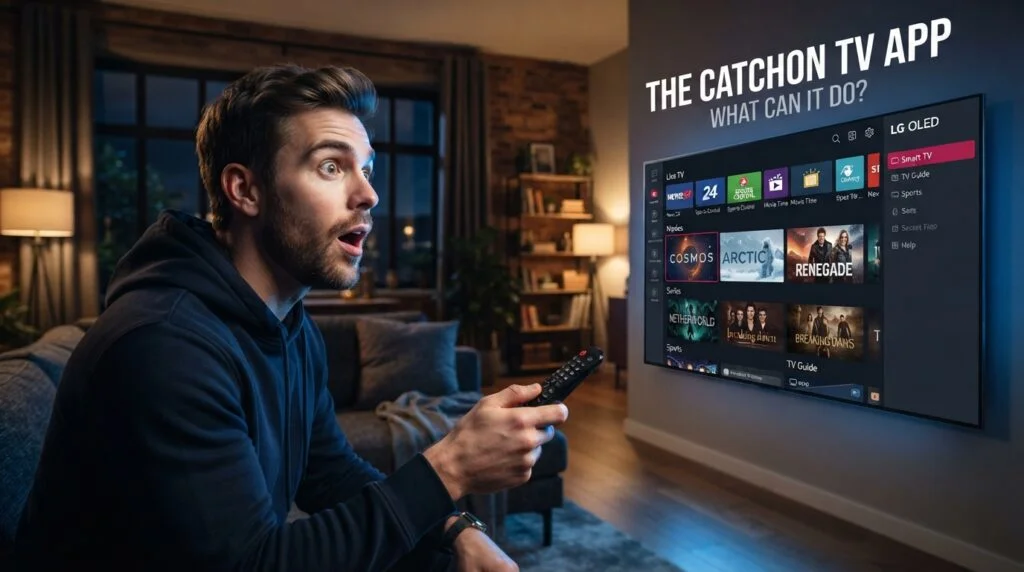
If you are comparing streaming options and keep seeing people mention the CatchON TV app, the first question is usually simple: what exactly is it, and what do you need before you can start watching? The app is designed to act as the viewing interface for a CatchON TV subscription, bringing live channels, movies, series, sports, and an electronic program guide together on supported devices. Instead of jumping between several separate streaming tools, subscribers use one interface to browse and play the content included with their account.
For new users, the important point is that the CatchON TV app is only one part of the setup. You still need an active subscription, the correct login information, a compatible device, and a reasonably stable internet connection. Once those pieces are in place, the experience is closer to using a normal streaming app than dealing with a complicated television installation. This guide explains how the app works, what devices make sense, how to install it, what to expect after login, and what to check if playback does not work properly.
What Is the CatchON TV App and What Does It Actually Do?
The CatchON TV app is the software subscribers use to access the CatchON TV service on compatible streaming devices. The service is built around live television, video on demand, sports, movies, series, and an EPG that helps viewers see what is playing and what comes next. The app itself is therefore best understood as the front end: it organizes the subscription and gives you a practical way to move between channels and on-demand content.
That distinction matters because installing the CatchON TV app by itself does not automatically create a working television package. A user normally needs a valid account or subscription details before the app can display the content connected with the service. If you are still comparing plans, the CatchON TV pricing page is the better place to begin because it lets you decide how many connections and what billing period fit your household before worrying about setup.
The main appeal of the CatchON TV app is convenience. A household that watches sports in the living room, movies on a bedroom TV, and occasional content on another supported device can keep the same service experience instead of learning a completely different interface every time. That does not mean every device behaves identically, but the basic idea stays the same: sign in, load your account, select what you want to watch, and manage playback through one application.
What You Can Expect to Find Inside the App
Once the CatchON TV app is connected to an active account, the interface should be centered around the types of content included with the service. CatchON TV advertises live channels, on-demand movies and series, sports coverage, multiple resolution options, and an electronic program guide. You can review the site’s CatchON TV channel list before subscribing if the actual lineup matters more to you than the total advertised number of channels.
Typical sections a viewer may expect include:
- Live TV categories for news, entertainment, sports, regional programming, and other channel groups.
- Movies and television series available on demand.
- An EPG or TV guide for compatible live channels.
- Search tools for finding a specific channel, movie, series, or category.
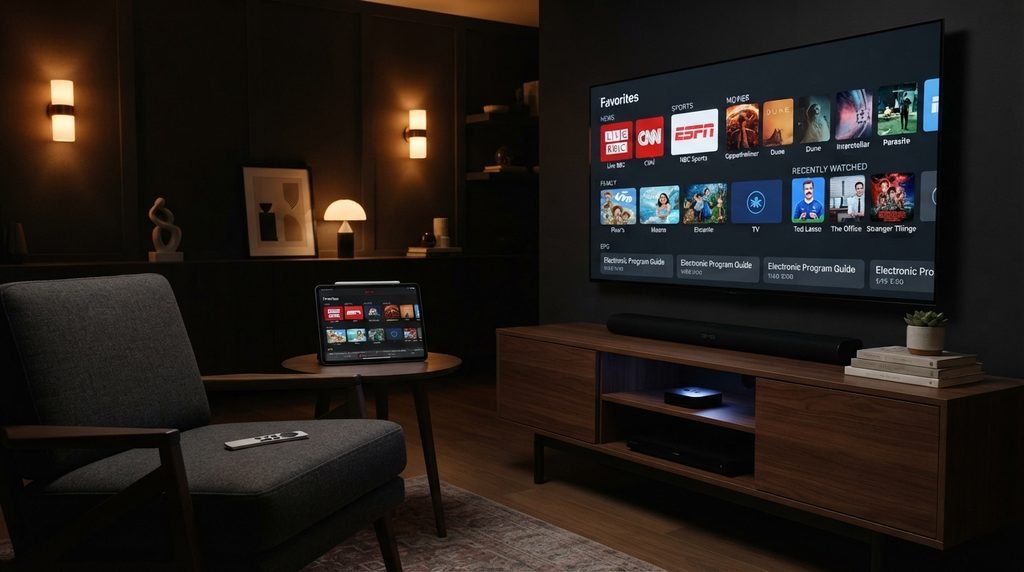
- Favorites or recently viewed sections, depending on the version and device.
- Account or playback settings that can affect the viewing experience.
The CatchON TV app is most useful when you treat those sections as navigation tools instead of focusing only on the raw size of the library. A service can advertise thousands of channels, but most people repeatedly watch a much smaller group. Creating favorites, learning the category structure, and using search can make the experience much faster than scrolling through long lists every time you turn on the TV.
Which Devices Work Best With the CatchON TV App?
Device compatibility is one of the first things to check before ordering. CatchON TV currently lists Firestick, Android, Smart TVs, smartphones, computers, and several other streaming platforms among its supported device categories. In practical terms, devices based on Android or Fire TV are often convenient for app-based television services because they are designed around installing and managing streaming applications.
The CatchON TV app can make sense on a large television when you want a cable-like viewing experience, but it can also be useful on a smaller screen when you want flexibility. Your choice should depend on where you actually watch television. A Firestick connected to a main TV may be the simplest option for someone who wants a dedicated living-room setup, while an Android TV device can be convenient for a user who already relies heavily on the Google ecosystem.
| Device Type | Best Use Case | Setup Difficulty | What to Check First |
|---|---|---|---|
| Firestick / Fire TV | Main television and remote-control viewing | Easy to moderate | Storage, installation permissions, Wi-Fi strength |
| Android TV / Google TV | Smart TV or streaming box users | Easy | App availability and Google account access |
| Android phone or tablet | Portable viewing and testing | Easy | Screen size, battery, Wi-Fi or mobile data |
| Smart TV | Direct television setup without an extra box | Varies | TV operating system and compatible app method |
| Windows or Mac | Desk or laptop viewing | Varies | Supported player or access method |
Before installing the CatchON TV app, check the exact model and operating system of your device. “Smart TV” is a broad category, and two televisions from different manufacturers may support different app stores or installation methods. If your television’s built-in software is restrictive, an external streaming device can sometimes provide a simpler app experience than trying to force an unsupported installation.
How to Install the CatchON TV App Without Making Setup Complicated
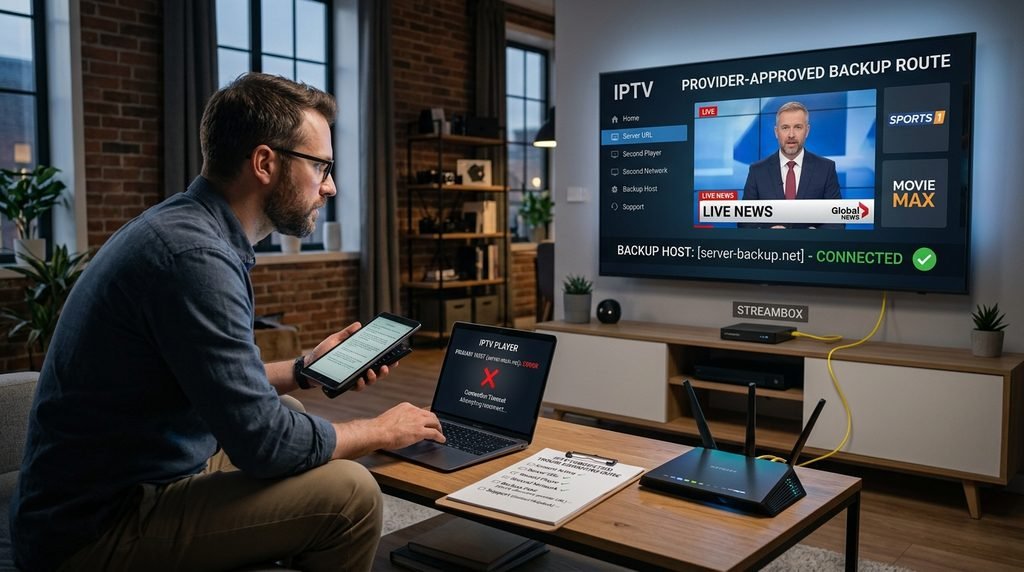
The installation path depends on your device, so avoid following a random tutorial that was written for a completely different operating system. The safest approach is to start with the instructions provided for your own subscription and device. If you have not received clear setup information, use the CatchON TV contact page rather than downloading files from an unrelated third-party website.
For Android TV and Google TV users, first check whether the required application is available through the normal app search process. Google explains that Android TV users can open the Play Store, search or browse for an app, select it, and follow the installation instructions. That general process is covered in the official Android TV app installation guide. If your CatchON TV setup uses another approved installation method, follow the instructions supplied with your account rather than guessing.
Installing on Android TV or Google TV
A normal setup for the CatchON TV app on an Android-based television should begin with confirming that the television is connected to the internet and has enough available storage. Search for the relevant application using the device’s app area. If it is available through the normal store, install it, open it, and enter the subscription credentials provided to you.
After you sign in, give the app time to load categories, channel information, and on-demand sections. The first launch can feel slower than later launches because the application may need to retrieve account data. Once everything is loaded, test a few live channels and one or two on-demand titles instead of assuming the entire setup is working because the home screen appeared.
Installing on Firestick or Fire TV
Fire TV setups can differ depending on the application version and how the provider distributes the app. If the CatchON TV app is available directly through the device’s supported app ecosystem, use that method first. If your official setup instructions require another installation route, follow only the provider’s current instructions and confirm that the download source is the one they gave you.
The most common mistake is copying an old download code or installation link from a forum, video, or random website. App files change, old links disappear, and unofficial downloads can be unsafe. When you are unsure, it is better to contact support and request the current instructions for your exact Firestick model than to install an unknown file just because somebody online said it worked months ago.
What Happens After You Log In to the CatchON TV App?
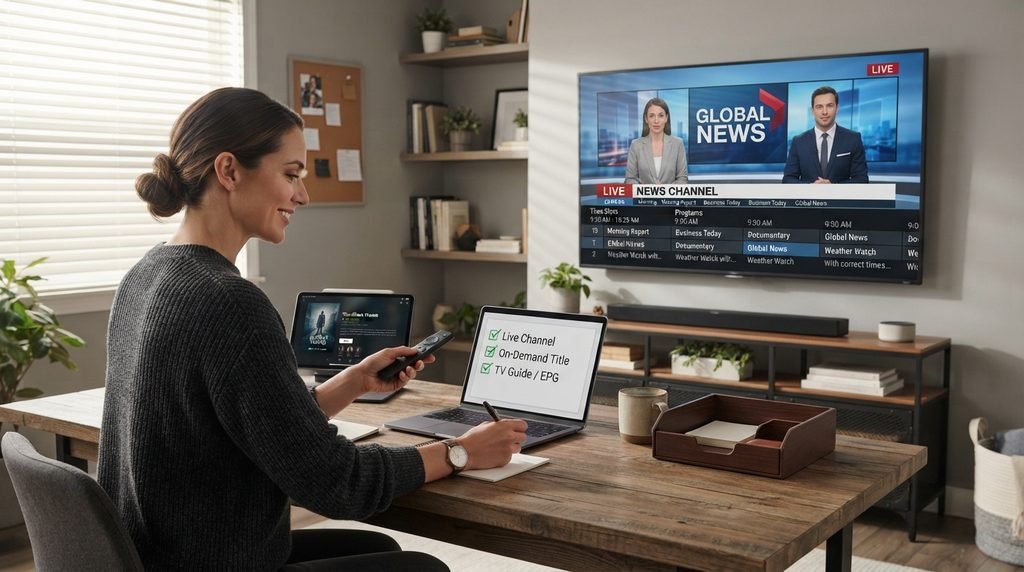
A successful login should take you from a blank application to the content connected with your account. The CatchON TV app may need a short period to sync categories, EPG information, live streams, and on-demand libraries. After that, the best first step is not to browse everything. Instead, verify the basic functions that matter to you.
Start with one live channel you know, then test another category, an on-demand movie or episode, and the EPG if you plan to use it regularly. If all of those load correctly, your account and connection are probably functioning normally. You can then spend time organizing favorites and learning the navigation instead of troubleshooting something that was only temporarily loading.
For sports viewers, the CatchON TV app becomes much easier to use when you identify the relevant sports categories before a major game begins. Do not wait until kickoff to learn where an event is listed or whether a specific channel is working. The same advice applies to PPV events: check the available categories and your connection in advance so you have time to contact support if something is missing.
For movie and series viewers, search is usually more efficient than browsing huge libraries manually. If you want to know what the service offers before ordering, start at the CatchON TV homepage and channel page, then compare that information with the kind of content you actually watch. A massive library is only valuable when the content you care about is easy to find and plays reliably on your device.
How Good Is Streaming Quality on the CatchON TV App?
Streaming quality depends on more than the app itself. The CatchON TV app can only play smoothly when your device, home network, internet connection, and the source stream are all working well together. CatchON TV promotes 4K, FHD, HD, and SD viewing options, but your real experience will still depend on local network conditions and the capabilities of the device you use.
If a stream buffers, begin by testing another channel or title. When only one stream has a problem, your internet may be fine and the issue may be specific to that source. When everything buffers, the more likely causes are your connection, Wi-Fi strength, device performance, or a broader service issue. That simple comparison can save you from changing settings that were never the problem.
The CatchON TV app will usually benefit from Ethernet when your streaming device supports it, especially if the television is far from the router or surrounded by interference. Strong 5 GHz Wi-Fi can also work well at shorter distances. If your router is several rooms away, moving it, using a mesh system, or connecting the streaming device by cable can sometimes make a bigger difference than changing anything inside the app.
A useful troubleshooting order is:
- Test two or three different channels or on-demand titles.
- Run an internet speed test on the same network.
- Restart the CatchON TV app and your streaming device.
- Restart the router if several devices are having network problems.
- Switch from weak Wi-Fi to Ethernet or a stronger Wi-Fi connection when possible.
- Check whether your device storage is almost full.
- Contact support if the problem continues across several streams.
Do not automatically assume that a higher resolution is always better. The CatchON TV app may feel more stable when you use a stream that matches your actual bandwidth and television. A reliable HD stream is better than repeatedly forcing a 4K option that your connection cannot sustain.
Subscription Plans, Connections, and the CatchON TV App
The app and the subscription should be considered together. The CatchON TV app is the place where you watch, while your plan determines the access and number of simultaneous connections you have purchased. If several people in the same household want to watch different programs at the same time, the number of connections can matter more than the length of the subscription.
The site’s current pricing page lets users choose between different connection counts and billing periods. Because prices and packages can change, linking directly to current CatchON TV subscription pricing is more useful than hard-coding a price into an article that could become outdated. Check the live page before ordering and make sure the plan matches how many screens will actually stream simultaneously.
| Household Type | Practical Setup | What Matters Most |
|---|---|---|
| One person | One main streaming device | Simple plan and stable connection |
| Couple | TV plus occasional second device | Enough simultaneous connections |
| Family | Multiple TVs or devices | Connection count and easy navigation |
| Sports-heavy household | Main TV with backup device | Reliability and event preparation |
| Frequent traveler | Home device plus portable option | Device compatibility and account access |
The CatchON TV app should not be confused with buying separate subscriptions for every television. Whether you need additional connections depends on the current plan rules and how many devices are streaming simultaneously. Review the plan details before paying rather than assuming that installing the software on several screens automatically gives every screen simultaneous access.
Is the CatchON TV App Easy Enough for Everyday Use?
For someone comfortable with Netflix-style menus, streaming sticks, or Smart TV apps, the CatchON TV app should not require advanced technical knowledge once installation is finished. The harder part is usually the first setup: getting the correct app, entering the right credentials, and making sure the network is stable. After that, daily use is mainly about choosing categories and content.
The interface will feel much easier if you spend ten minutes organizing it when you first start. Add frequently watched channels to favorites, learn where live television and VOD are separated, and check how the EPG behaves on your device. Doing that once is better than repeatedly scrolling through thousands of items.
The CatchON TV app is also more practical for households when everybody knows the basic navigation. If only one person understands how to find channels, change categories, or restart the app, every small issue becomes a support request inside the house. Showing other users where favorites, search, live TV, and movies are located can make the system feel much closer to ordinary television.
Common Problems With the CatchON TV App and How to Fix Them
Most streaming-app problems fall into a few categories: login errors, installation issues, buffering, missing content, or an app that fails to load correctly. The right fix depends on the symptom, so avoid reinstalling everything as the first response.
| Problem | Likely First Check | Best Next Action |
|---|---|---|
| Login rejected | Username/password and subscription status | Re-enter credentials carefully, then contact support |
| App will not open | Device storage or corrupted app data | Restart device, then reinstall if necessary |
| Constant buffering | Network quality | Test other streams and improve Wi-Fi/Ethernet |
| One channel not working | Individual stream issue | Test another channel and report the affected one |
| EPG not loading | Sync or temporary data issue | Refresh/restart and allow time to reload |
| App disappeared after update | Device/app compatibility | Confirm the current installation method with support |
When the CatchON TV app rejects your login, check for typing mistakes before doing anything more complicated. Streaming credentials can include characters that are easy to confuse, especially when copied manually with a TV remote. If the same credentials keep failing after careful re-entry, contact the provider instead of repeatedly reinstalling the application.
If the CatchON TV app opens but shows no content, give it a moment to synchronize and then restart it. If categories remain empty, confirm that the subscription is active. A working installation does not necessarily mean the account behind it is currently authorized.
If the CatchON TV app buffers only during a heavily watched live event, test other channels to separate a local network issue from an event-specific stream problem. If every category struggles, troubleshoot your internet and device. If one stream struggles while everything else works, report that specific stream so support has something useful to investigate.
Is the CatchON TV App Worth Using in 2026?
Whether the CatchON TV app is worth using depends less on a giant feature list and more on whether it fits how you watch television. Someone who wants live channels, sports, movies, series, and a single interface across compatible devices may like the convenience. Someone who watches only two or three mainstream services may prefer staying with those individual apps.
The CatchON TV app makes the most sense for users who value breadth and want one central place to browse different types of entertainment. It also suits people who already own Fire TV or Android-based streaming hardware and do not mind spending a few minutes on initial setup. The biggest practical questions are device compatibility, the channels you actually care about, connection quality, support, and the subscription terms.
Advantages to Consider
- One interface for live TV and on-demand viewing.
- Support for several common streaming-device categories.
- EPG functionality for channel browsing.
- Flexible use across different screens when the selected plan supports the needed connections.
- A large advertised entertainment catalog.
Things to Check Before You Subscribe
- Whether your exact television or streaming device supports the required setup.
- Whether the channel lineup includes what you actually watch.
- How many simultaneous connections your household needs.
- Whether your home connection is stable enough for your preferred resolution.
- What current setup instructions and support options are available.
The CatchON TV app should be evaluated with the same practical mindset you would use for any paid streaming product. Test compatibility, understand the plan, confirm the channels you need, and save the support details. That approach is more useful than choosing purely because a service advertises a very large number of channels or movies.
Frequently Asked Questions About the CatchON TV App
What Is the CatchON TV App Used For?
The CatchON TV app is used to access the live channels, on-demand movies, series, sports categories, and guide information associated with a CatchON TV subscription. You install it on a compatible device, sign in with the account details supplied for your subscription, and use the interface to browse and play content.
Can I Use the CatchON TV App on Firestick?
The CatchONTVUSA site lists Firestick among its supported device types. The exact installation method can change, so use the current setup instructions associated with your subscription. If an old tutorial gives you a download link or code that no longer works, request updated instructions rather than searching for an unknown APK.
Does the CatchON TV App Work on Android TV?
Android and Android TV are listed among supported platforms on the CatchONTVUSA site. Before installing the CatchON TV app, check the normal app options on your device and follow the provider’s current instructions. Android TV itself supports downloading compatible applications through its app ecosystem.
Do I Need a Subscription Before Installing the App?
You can sometimes install software before purchasing, but the CatchON TV app needs valid service access to become useful. The subscription is what provides the credentials and content access. If you have not chosen a package, compare the current plans and connection limits first.
Why Is the CatchON TV App Buffering?
Buffering can come from weak Wi-Fi, limited bandwidth, device performance, a specific stream, or a temporary service issue. Test multiple channels, restart the app and device, check your internet connection, and use Ethernet or stronger Wi-Fi if available. If only one stream fails, report that specific channel rather than changing your entire setup.
How Do I Update the CatchON TV App?
The update method depends on how the application was installed and the device you use. Apps installed through an official device store can normally be updated through that store. If your setup used another provider-approved method, follow the current instructions from support and avoid downloading update files from unknown websites.
Can I Use the CatchON TV App on More Than One Device?
You may be able to install the CatchON TV app on multiple compatible devices, but simultaneous viewing depends on the number of connections included in your subscription. Check the current plan terms before assuming that several devices can stream at the same time.
What Should I Do If I Cannot Install the App?
Confirm your device model, operating system, storage space, and internet connection first. Then use the provider’s current setup instructions. If the CatchON TV app still will not install, contact CatchON TV support and tell them the exact device model you are using so they can give device-specific guidance.
Final Verdict: What to Know Before Using the CatchON TV App
The CatchON TV app is essentially the gateway between your subscription and the screen you watch on. It brings live TV, on-demand entertainment, guide information, and other account content into one interface, while your chosen subscription controls the access and simultaneous connections available to you. For most users, the smartest setup starts with confirming device compatibility, checking the channel lineup, choosing the right plan, and following the current installation instructions.
If you decide to try the CatchON TV app, do not overcomplicate the first day. Install it from the correct source, enter your credentials carefully, test several types of content, and create favorites for the channels you use most. If playback problems appear, troubleshoot logically by separating app, device, internet, and individual-stream issues before changing settings at random.
The CatchON TV app can be a convenient option for viewers who want live channels and on-demand entertainment in one place, especially on Fire TV and Android-based devices. Before paying, review the CatchON TV website, compare the current subscription options, check the channels that matter to you, and make sure your device is supported. That gives you a much clearer picture of whether the service fits your household than relying on a headline or a channel-count claim alone.